A lost enquiry is invisible until it is too late
A form that sends an email and nothing else has three well-known failure modes: the email lands in spam, the email gets buried under fifty others, or the email goes to an address nobody checks any more. And you never find out, because nothing is left behind of what you lost.
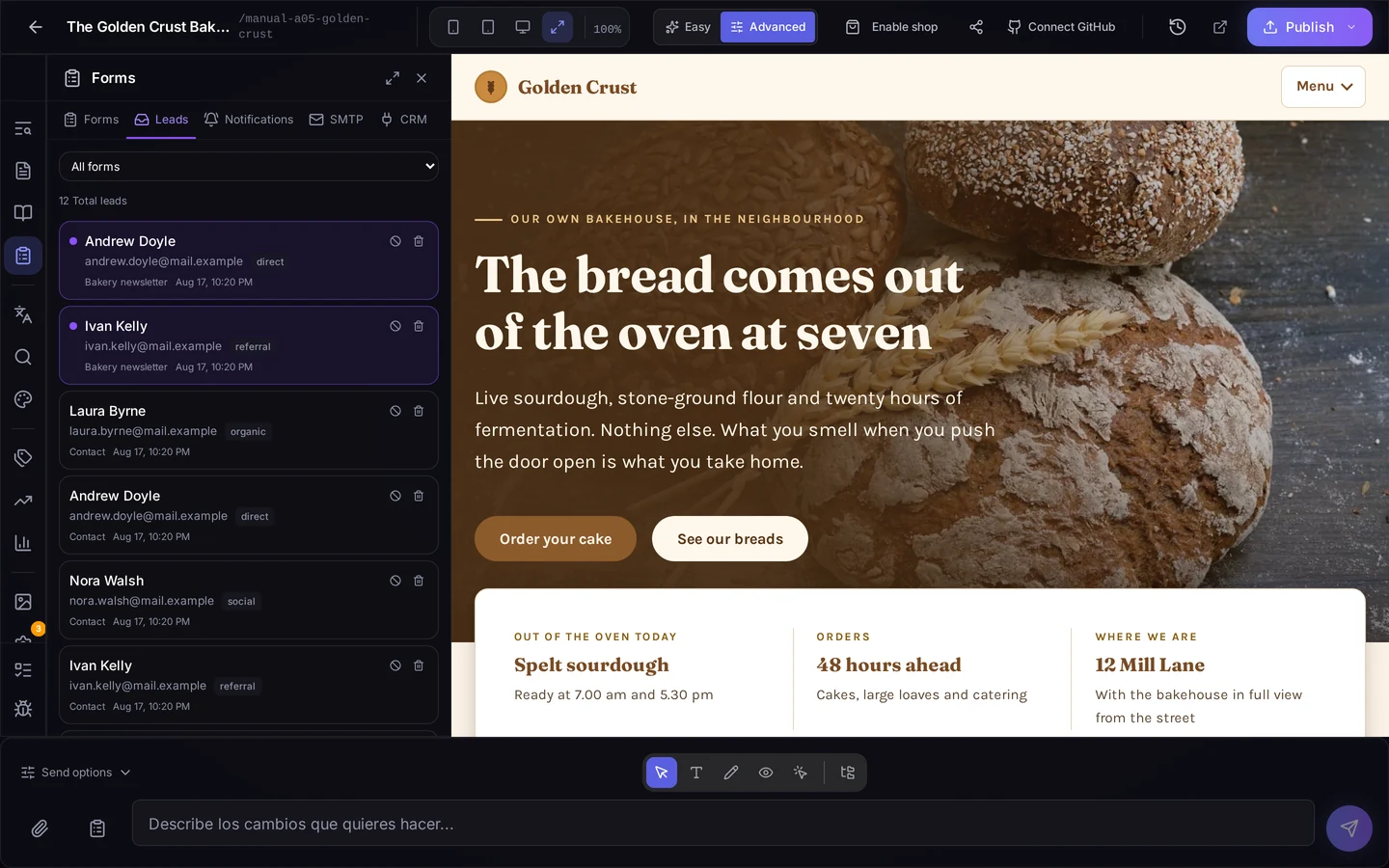
In Speaksite the form does not rely on email to survive. Every submission is stored in your panel, with its date, and the email is only the alert telling you there is something new.
Messages live in your panel
The leads tab shows everything that came in through your site: who wrote, their email address, which form they used and when. From there you can:
- Filter by form, to keep contact separate from quote requests or newsletter sign-ups.
- Read the full message with every field the person filled in.
- Mark as read and mark as spam, so the list stays a real list and not a drawer.
- See where each lead came from: direct, a link on another site, a search, or social media.
That last one is usually the missing piece. When someone asks whether the work you put into social media is paying off, the answer is in your leads list, not in a hunch.
The alert arrives as it happens
In the notifications tab you decide who gets told. And it is not one single address:
- Site addresses: up to ten that receive everything coming in from the website.
- Per-form addresses: quotes to sales, incidents to the workshop.
- Mute one form if you do not want alerts from it.
- A test button to send yourself an alert right now and check it arrives, before you need it for real.
If you set no address at all, alerts are not lost: they fall back to the project owner. They never go nowhere.
Building the form: by hand or by describing it
You can build it field by field in the form editor, with validation and with fields that appear only when a previous answer calls for them. Or you can describe it in your own words — what you want to ask and what for — and the AI builds it: the form comes back assembled and you fine-tune it.
Then you insert it into whichever page you want, and you can also take the embed code and place it wherever you need. If you would rather it appeared as a pop-up, that is configured right there: whether it shows after a few seconds, once someone scrolls past a point, or when they click something specific, and how long you leave alone whoever dismissed it.
And so you never lose track of where each form ended up, the panel lists the URLs of your site where it appears, with a link to open them.
If your site already had forms
When you arrive with a website already built, the panel detects the forms living in your pages and tells you which pages they are on. From there you import them and they behave like the rest: submissions get stored, alerts get sent. You do not have to rebuild them to stop losing messages.
Attachments, export and your CRM
- Attachments: if the form asks for a file, you download it straight from the message.
- Export: take your leads as a CSV, with whatever filters you have applied, and work them in your spreadsheet.
- Send to your CRM: connect your CRM and decide which form field maps to which CRM field. If a submission did not make it, you can see it and retry.
And if you want the emails to come from your own address
There is an SMTP tab where you can set your own mail server. It is optional, but for many businesses it changes something that matters: the alert leaves from the company domain instead of a generic address.
Where to start
- Open the Forms panel of your project.
- If your site already had forms, let it detect them and import them.
- Build whatever is missing, by hand or by describing it to the AI, and insert it into the page.
- Set the alert addresses and use the test button.
- From then on, work from the leads list: everything that comes in is there.
That is the difference between believing your website brings in no enquiries and knowing how many it brings, where they come from, and which ones you never answered.