Most commerce platforms share the same flaw. They hand you a shop with two hundred features switched on, and you have to learn to ignore a hundred and ninety of them. The panel fills up with menus you will never open, and finding the ones you do use becomes a memory exercise.
The Speaksite shop works the other way round. You arrive, look at the list of what exists, and switch on what makes sense for what you actually sell. The rest is not hidden. It is off, which is not the same thing.
The Apps screen
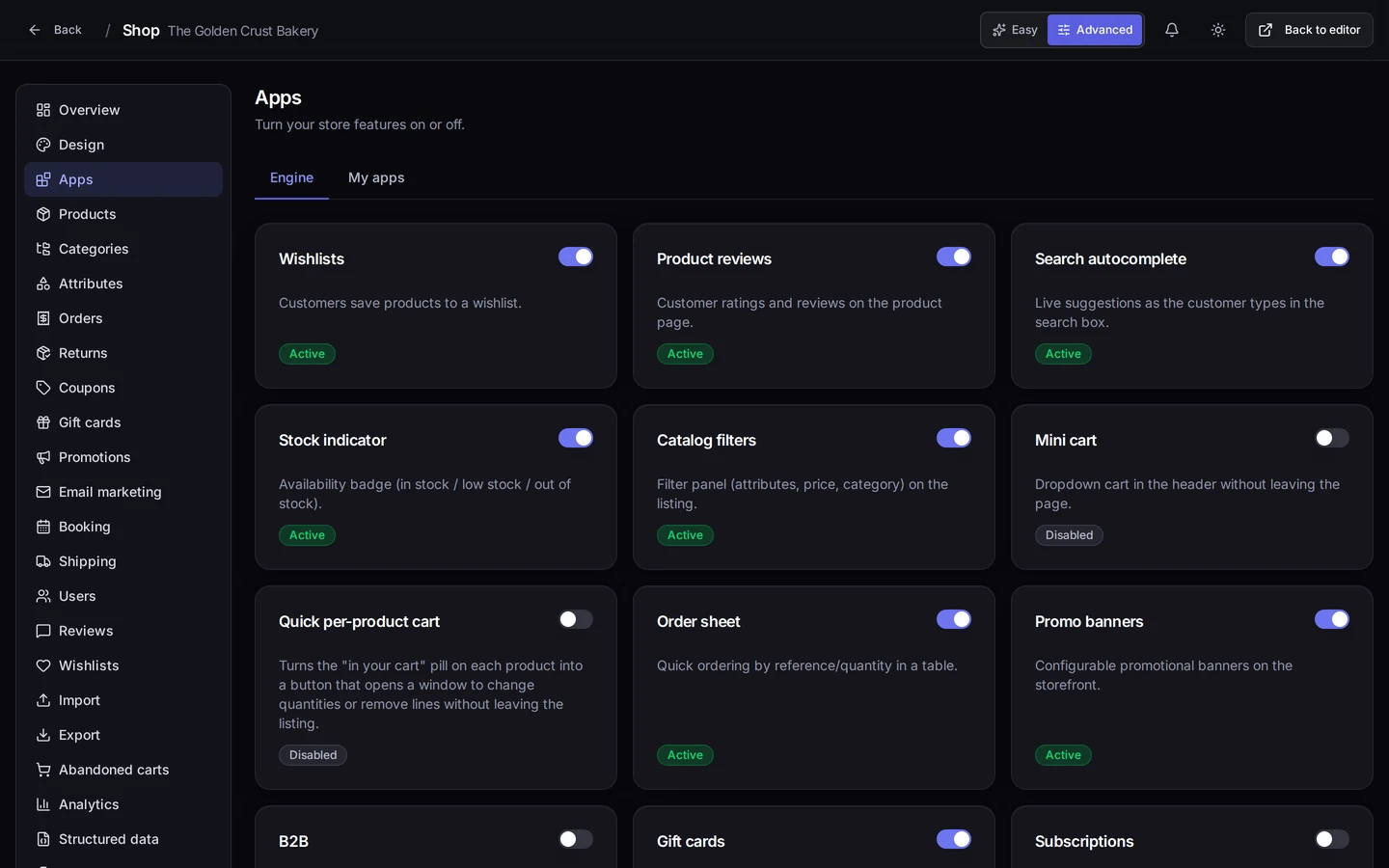
The screen at the top of this page is that list, in our demo bakery's shop. Every feature is a card with a one-line explanation and a toggle, and it says plainly underneath whether it is active or disabled. Some of what is in there:
- Wishlists, so customers can save products for later.
- Product reviews: customer ratings and reviews on the product page.
- Search autocomplete: live suggestions as the customer types in the search box.
- Stock indicator, the availability badge — in stock, low stock, out of stock.
- Catalog filters, the filter panel by attribute, price and category on the listing.
- Mini cart, the dropdown cart in the header, without leaving the page.
- Order sheet: quick ordering by reference and quantity in a table. If your customers are trade buyers who already know what they want, this one changes their day.
- Promo banners, the configurable strips on the storefront.
Alongside them sit the ones big enough to own a whole section: gift cards, subscriptions, B2B, booking, affiliates, email marketing, abandoned carts.
The detail that makes this worth doing
Switching an app off does not only switch something off in the shop: it also removes its entry from your panel menu. You can see it in this page's own screenshot. In that example shop, B2B and subscriptions are off, which is exactly why there is no Groups and no Subscriptions in the left-hand menu. Turn one on and its section shows up.
What you end up with is a panel shaped like your business rather than like somebody's sales brochure. A bakery that delivers locally and a consultancy that sells hours end up with two different panels, and nobody had to write any code.
This is also, incidentally, the number one reason someone writes to say a feature is missing. It is not missing; it is switched off. Before giving anything up for lost, look here.
And now, the numbers
Selling without looking at the numbers is driving by mirror alone. The Analytics screen gathers what is actually worth watching in a shop, without turning it into a wall of twenty charts nobody opens twice:
- Revenue for the period.
- Orders: how many, not how much.
- Average order value, which is the number that really moves a business. Lifting it ten per cent is usually easier than finding ten per cent more people.
- Refund rate, the uncomfortable one, which is precisely why it belongs in plain sight.
Underneath, two charts: daily revenue and top products, what sells most. And a period selector that compares against the previous period, which is what turns a figure into news. Four thousand euros says nothing on its own; four thousand against three thousand last month says plenty.
If there were no sales in the range you picked, the screen says so in words instead of drawing a flat line that could be mistaken for something else.
Where it is in your panel
Both hang off your project's Shop: /shop/<your-project>/apps and /shop/<your-project>/analytics. Apps is always visible in the menu; Analytics appears once you flip the switch at the top right to Advanced.
What you get out of it
You get a shop that is yours. No half-used features left on just in case, no menus you have to learn to skip past, and no paying for separate add-ons for things that are a toggle here. And you get the most profitable habit a shopkeeper can pick up: reading four numbers once a week instead of doing sums from memory at month end.
Where to start today
Give the Apps screen ten minutes and read it top to bottom. Switch off what you are never going to use — your menu slims down immediately — and switch on one single thing you do not have today and think would suit you. Then open Analytics, look at this month's average order value and compare it with last month's. That is the number to start from.