A website without its own name never feels quite yours
The address is the first thing people type, the thing printed on your card and the thing that shows up in Google. As long as your site lives at a borrowed address, every time you read it out on the phone you will be explaining why it is not really yours.
Wanting a domain is rarely the problem. The path is: register it in one place, point the DNS somewhere else, wait to see whether it worked, and call someone when it did not. In Speaksite that whole path is one screen in your panel.
Search and buy without leaving the panel
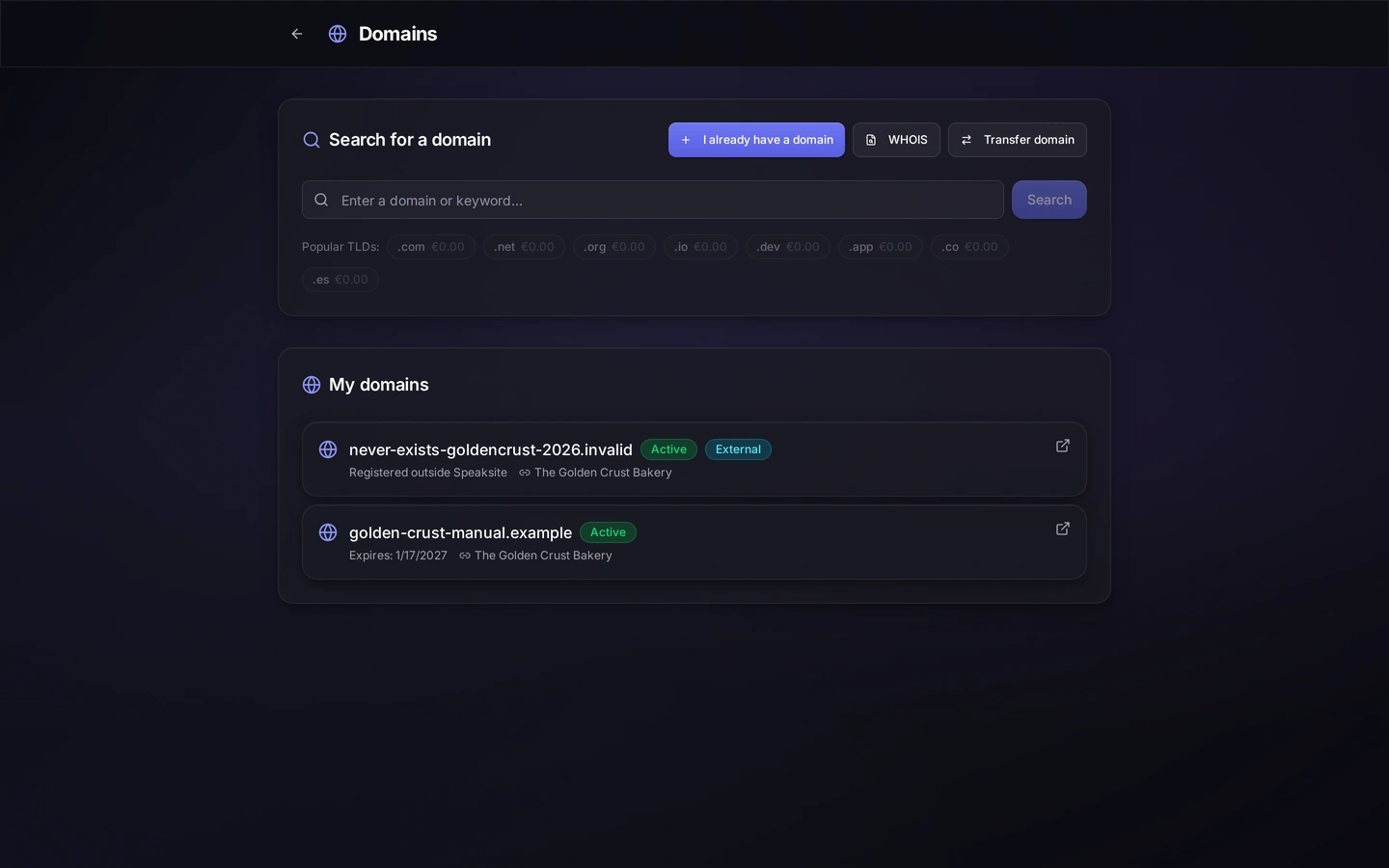
In Domains you type the name you want — or just a keyword — and it tells you whether it is free, with the most common extensions in view so you can compare at a glance. When you pick one, you buy it right there. No second provider to sign up with, no codes to copy between control panels.
Already own one? Two different paths
Plenty of people arrive with the domain already bought. You can do two things, and it is worth knowing how they differ:
- I already have a domain: you add it and use it for your site, but it stays registered where it was. Neither a purchase nor a transfer, just putting it to work. It shows up in the list marked as external.
- Transfer a domain: you bring it over to Speaksite, with a wizard that asks for what the transfer needs.
Both end the same way for your visitors: your site published under your name. They only differ in where the registration lives.
DNS without having to learn DNS
DNS is where people get stuck, so the panel brings the records ready-made. There are templates and presets for the usual cases — your email, a third-party service — and you can edit records by hand if you know exactly what you want. The same screen handles subdomains and forwarding, for when one address should lead to another.
The registrant, WHOIS and the history
A domain has an owner and that data is yours: registrant details are filled in and corrected from the panel. Next to it you have a WHOIS lookup for checking any domain, and your domain's history so you know what was done to it and when.
The domain and your site, tied together
A domain on its own does nothing: it has to know which site it points to. On the domain page you connect it to your project and see it written there, same as in the list, where every domain shows the project it serves. If one day you want it for something else, you disconnect it from the same place.
The settings that save you grief
Each domain page carries the switches other providers make you hunt for:
- Auto-renewal: the silliest way to lose a website is a domain that expired while nobody was looking.
- WHOIS privacy, so your name and address are not on display for anyone who asks.
- Domain lock, which is what stops it being transferred without your say-so. You unlock it when you genuinely want to move it.
- Your own nameservers, if you need to point elsewhere.
And in plain view, the registration and expiry dates — the number worth checking once a year.
Knowing it is healthy, instead of guessing
Every domain has a health check that tells you how the parts your website depends on are doing, and the list shows whether it is active and when it expires. If the verification email got lost, you can have it sent again from there. That is the difference between waiting for a customer to tell you the site is down and seeing it first.
And if one day you leave
The way out is in the panel too: there is a wizard to transfer your domain away from Speaksite. Keeping the exit in plain sight is the best proof that the domain is yours and not ours. You stay because you want to, not because you cannot work out how to leave.
Where to start
- Go to Domains in your account.
- Search for the name you want and buy it, or use I already have a domain if you bought it elsewhere.
- Link it to your project and go over its DNS with the templates.
- Publish the site and check it at the new address.
When you are done your website will be where it belongs: under your own name, with its DNS in order and all the domain paperwork on a single screen.