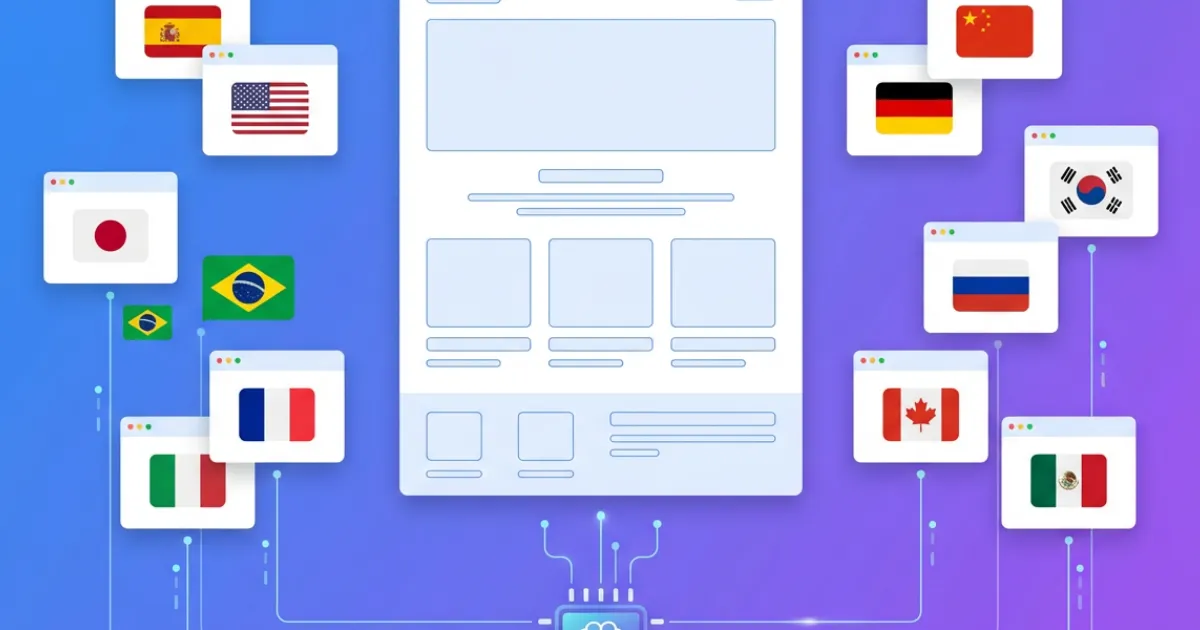
Selling abroad should not cost you a second website
The classic way to have your site in two languages is to have two sites: two menus, two sets of pages, every price change made twice, and one of the two always out of date. That is why most businesses keep postponing it and end up answering in English by email what the website could have said on its own.
In Speaksite a language is not another website. It is a switch inside the one you already have. The pages stay yours, the panel is the same, and what changes is that each page now has a version per language with its own URL.
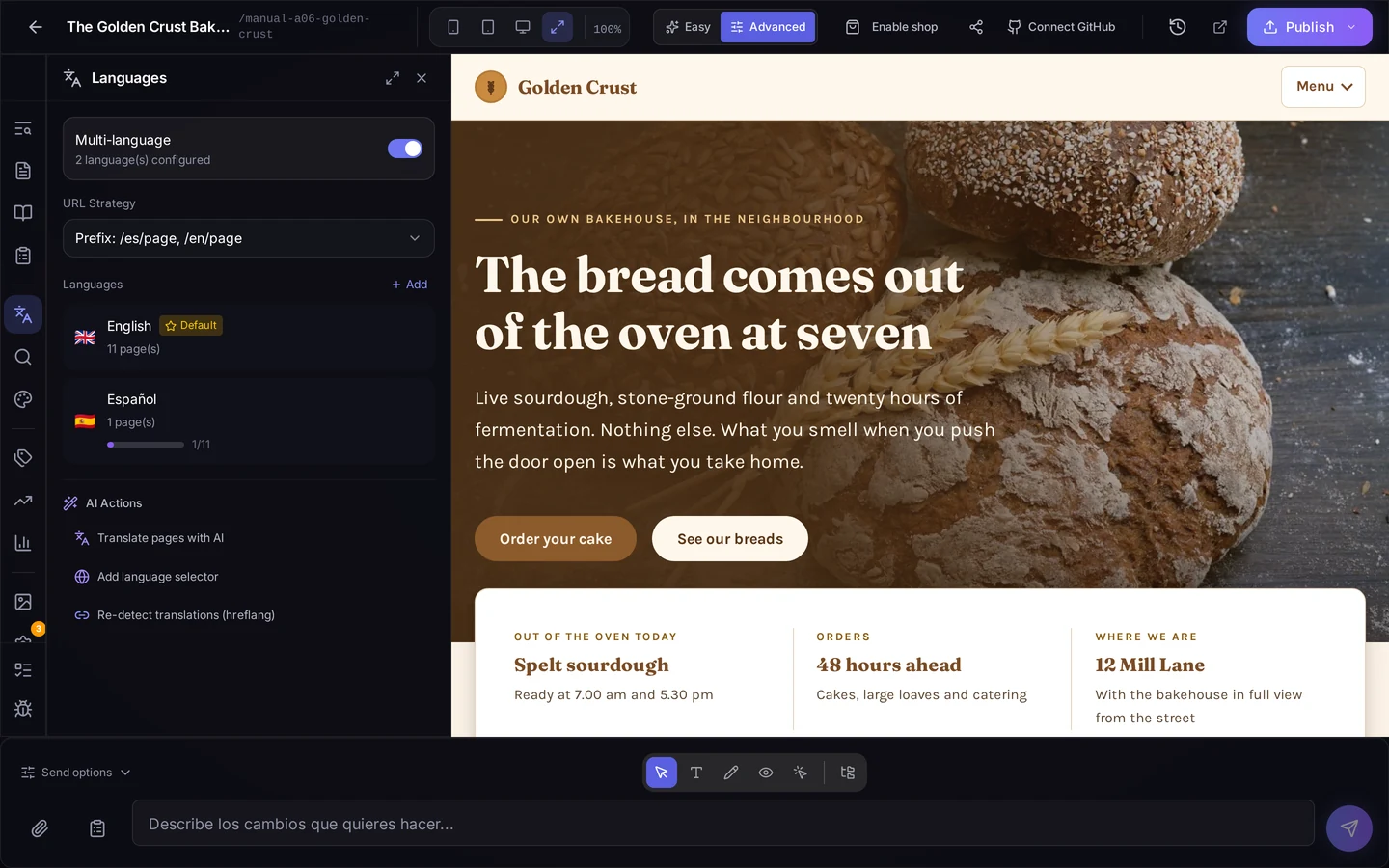
What you see when you open Languages
The Languages panel lives in your project editor, right next to the live preview of the site. One screen gives you:
- The multi-language switch, and how many languages you have configured.
- The URL strategy: how the language shows up in the address.
- The list of languages, with the default one marked and the page count for each.
- Translation progress: how many pages the second language has covered out of the total. In the screenshot, Spanish is at 1 of 11.
That counter is the part you use every day: it tells you what is still missing without walking page by page to check.
Translating is a request, not copy and paste
From the same panel, under the AI actions, you hand over the translation. There are two ways to do it:
- Page by page, when you want to control the order: home and contact first, the rest when it suits you.
- In one go when you add a new language, with the wizard that walks you through the first time and leaves the language configured and the pages queued.
Blog posts have their own AI translation from the blog manager, and it runs without locking your panel: you request it and carry on working.
The translation does not replace your judgement. It lands as one more page of your site, fully editable: you go in, fix the places where the nuance matters — a product name, an expression from your trade — and publish.
You decide the URLs
A new language changes the addresses of your website, and that is not a detail: those are the links people have bookmarked and the ones Google already has indexed. So two things stay in your hands:
- The URL strategy: you choose how the language appears in the address, for example as a prefix (
/es/pagina,/en/page). - The default language: the one served at the root. Before you change it, the panel shows you which URLs would change. You see the effect and then decide, instead of deciding and then finding out.
The language switcher, and what you never have to touch
For visitors to change language, your site needs a switcher. That is one button in the panel: you generate it and it lands on your site, with the languages you have active.
What you never have to learn is hreflang, the tags that tell Google two pages are the same page in different languages. They are generated from the translations you have, and there is an action to detect them again if you have moved pages around. It is not a task on your list: it is already done when you publish.
If your site already came with languages
You do not always start from scratch. When you arrive with a site already built, the panel can look at how it is put together and tell you whether it is already multilingual and with what structure, and it can also work out which language your content is written in — the fact that decides which one should be the default. And if a language turns out to be surplus, you remove it.
It is good for the usual reason: starting from what you actually have, instead of building on top of something that was already half done.
This very page is the example
The blog you are reading works exactly like that. It is English at /blog and Spanish at /es/blog, and this post has its Spanish twin: two separate pages, each with its own URL and its own text, paired so the switcher takes you to the same post and not to the blog index.
It is the most honest proof we can show you that it works: we use it for our own website.
Where to start
- Open your project in the editor and go to the Languages panel.
- Turn on multi-language and add the second language. The wizard guides you the first time.
- Choose the URL strategy before translating anything.
- Request the translation of the pages that matter most, then review them.
- Generate the language switcher and publish.
When you are done you will have one website, not two, speaking your customers' languages. Plus the page counter in the panel to see at a glance what is left to translate.