Chapter 10 of 11
Shop: marketing
Coupons, promotions, gift cards, affiliates and email marketing.
On this page
These are the tools for selling more: coupons, automatic promotions, banners, gift cards, affiliates, marketing email, and the analytics that tell you whether any of it is working.
Before we start: all of this lives in Advanced mode. The shop menu has two faces. In Easy mode you only see Overview, Design, Apps, Products, Orders and Settings. Coupons, Promotions, Gift cards, Affiliates, Email marketing, Abandoned carts and Analytics don't appear until you click Advanced in the top right-hand corner. If you're looking for "Coupons" and can't find it, it isn't that you don't have it: it's that you're in Easy mode.
10.1Discount coupons
What it's forA coupon is a code your customer types in to get a discount: 10%, five euros, or free delivery. You decide how much it takes off, how long it lasts and who can use it.
How to get thereFrom the projects dashboard, open your project, click Shop, turn on Advanced in the header and click Coupons in the left-hand menu.
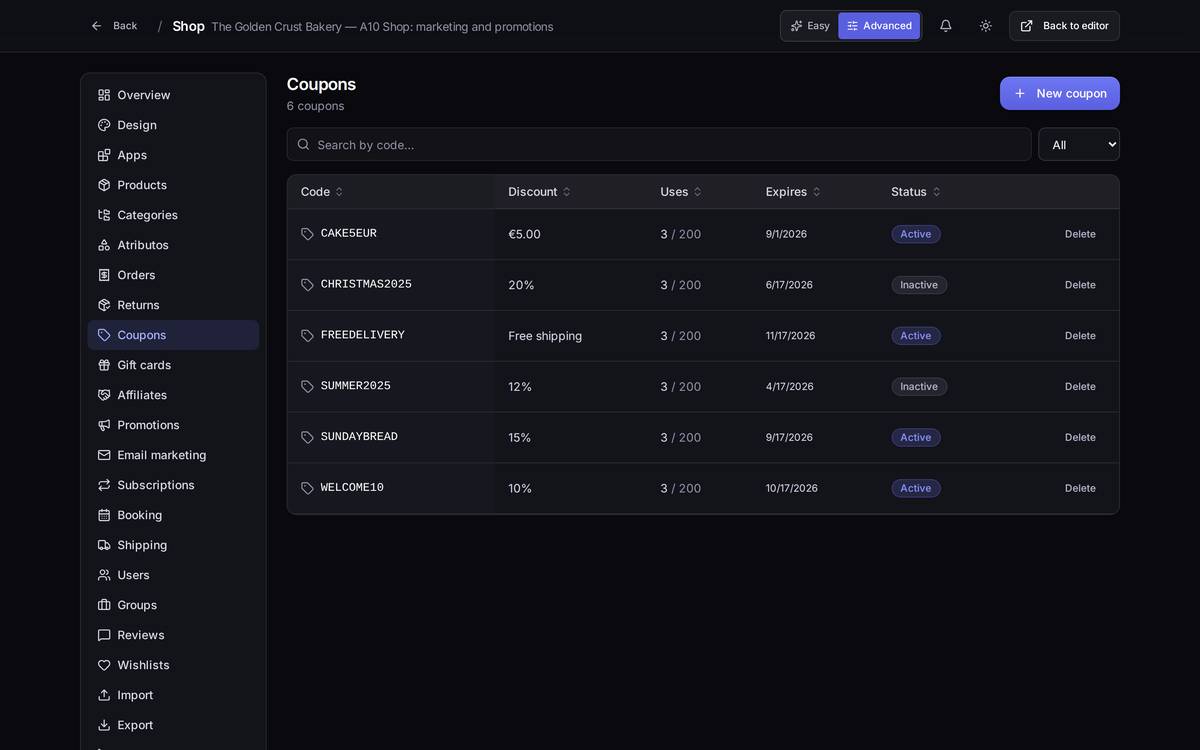
What's on screen
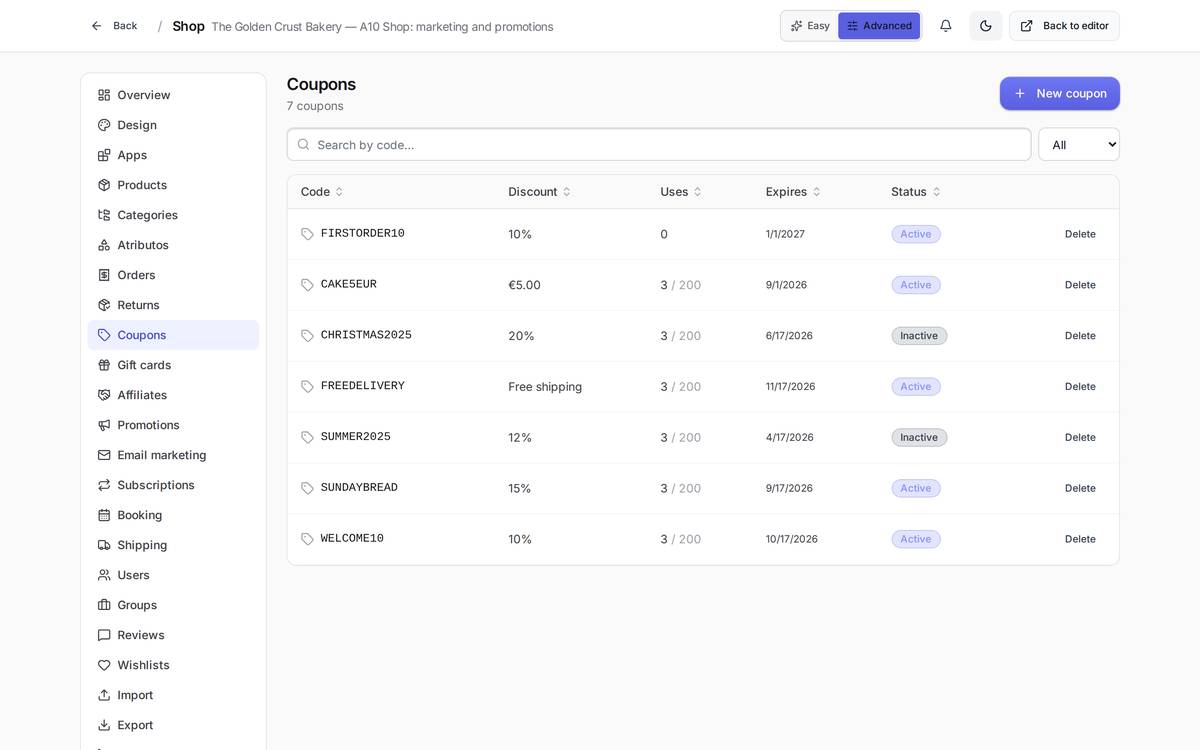
- Search by code and, to its right, an All / Active / Inactive filter. Handy once you've built up two seasons' worth of campaigns.
- Uses: reads "3 / 200", meaning used 3 times out of a maximum of 200. If you set no cap, you'll only see the number of uses.
- Status: Active or Inactive. An inactive coupon still exists but nobody can apply it.
- Delete, at the end of each row. It removes the coupon; orders that already used it are untouched.
Watch out for… deleting a coupon you're still advertising on social media or in your newsletter: the code stops working instantly and all the customer sees is that it "doesn't work". If you want to shut it off, it's cleaner to untick Active: that way you can switch it back on.
10.2Creating or editing a coupon
What it's forThis is where you define the code and its rules. The same screen is used both to create a new one and to tweak an existing one.
How to get thereIn Coupons (Advanced mode), click New coupon; or click a coupon's row to open it and change it.
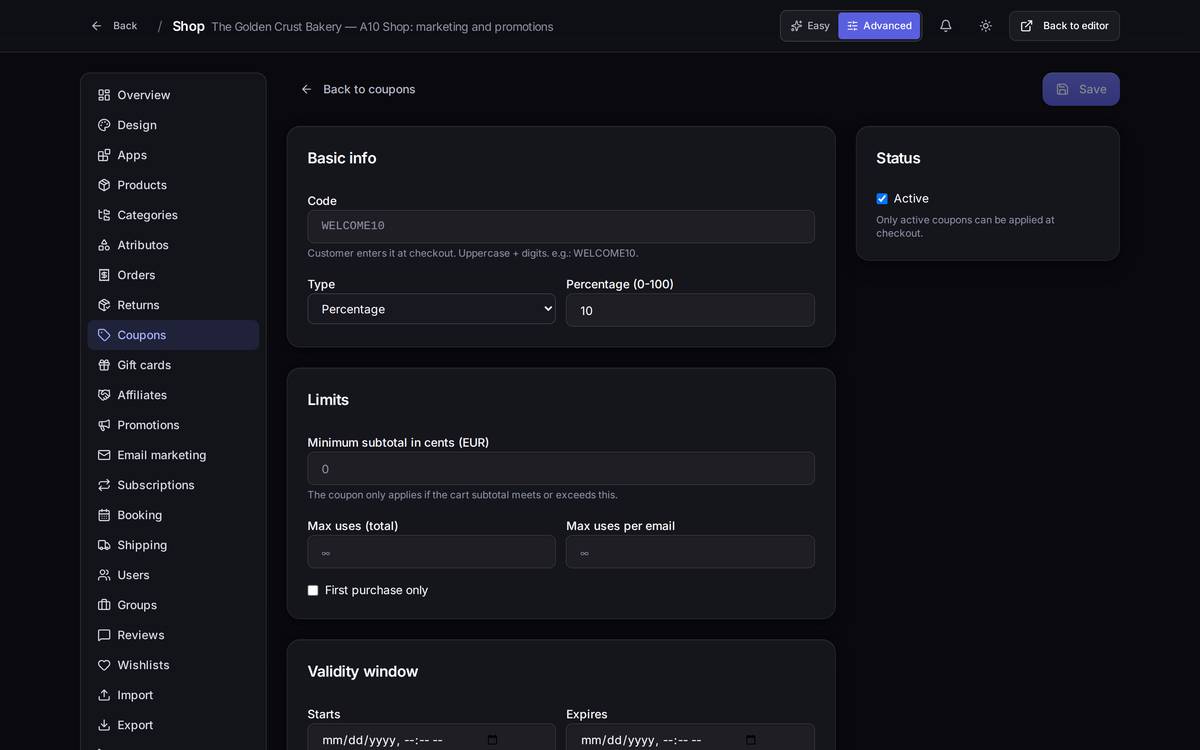
What's on screen
- Code: what the customer types. It's uppercased for you. Use something short and easy to read out over the phone.
- Type: Percentage, Fixed amount or Free shipping. Changing it changes the field next to it.
- Percentage (0-100) for percentage coupons; Amount in cents for fixed ones. With Free shipping the value is ignored.
- Minimum subtotal in cents: the coupon doesn't apply unless the basket reaches that amount. Empty or 0 = no minimum.
- Max uses (total) and Max uses per email: the cap on how many times it can be redeemed across the whole shop and by each customer. Leave them empty to make them unlimited — you'll see a faint ∞ in the background.
- First purchase only: reserves the coupon for people who have never bought from you.
- Starts / Expires: the validity window. Empty = no limit on that side.
- Active, on the card to the right: the on/off switch.
A worked example: 10% for new customers
- Shop → Advanced → Coupons → New coupon.
- In Code, type
FIRSTORDER10. - Leave Type on Percentage and put 10 in Percentage (0-100).
- Tick First purchase only.
- In Expires, set 31 December at 23:59.
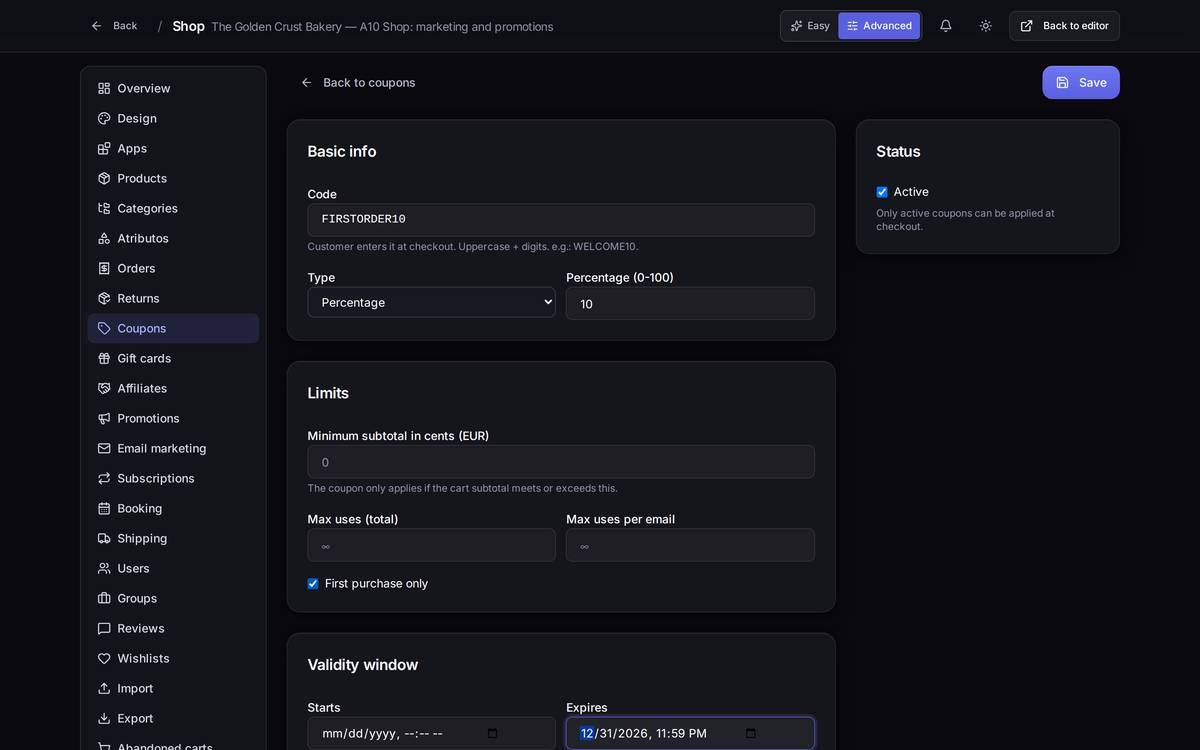
- Click Save. You're taken straight back to the list and there's your new coupon, with 0 uses and its expiry date.
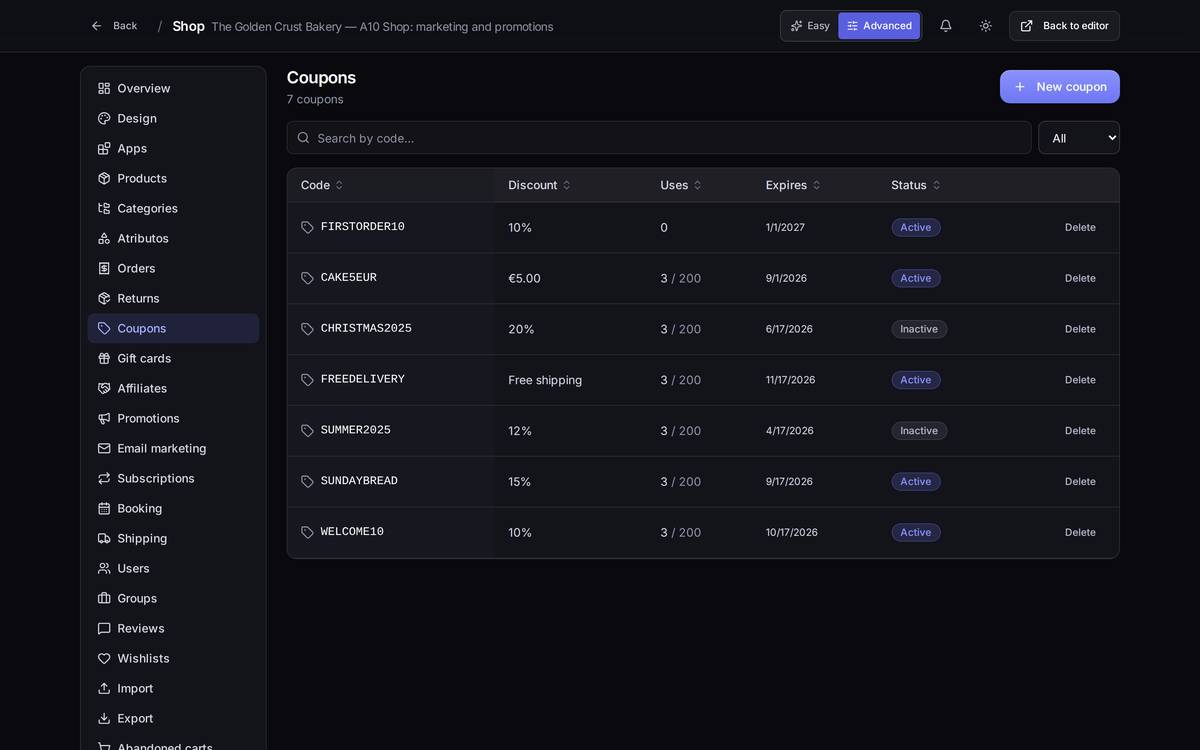
FIRSTORDER10 appears at the top, active and with 0 uses.And if you get it wrong. Try putting a 0 in Max uses (total): the panel won't let you save and throws a red warning at the top.
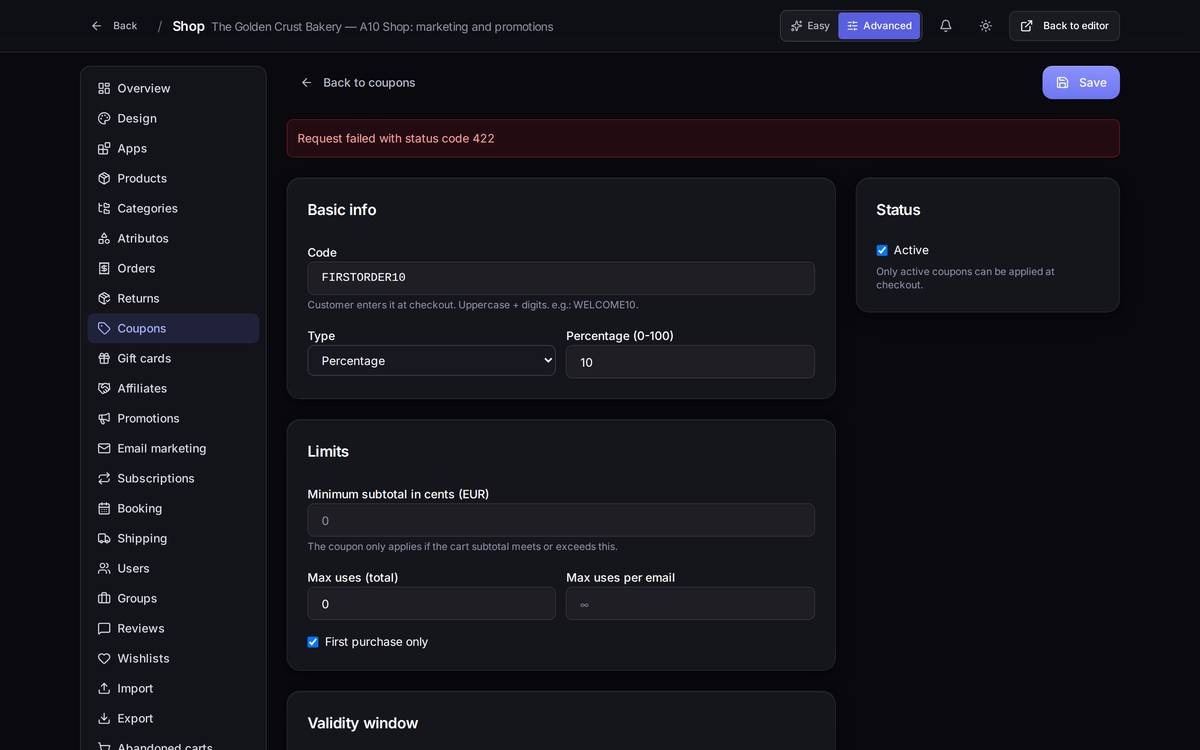
The question everybody asks: what does a usage limit of 0 mean? Neither one thing nor the other: it can't be saved at all. The field requires 1 or more, and the server rejects a 0 (that's the warning in the screenshot above). For "no limit", leave the field empty; the grey ∞ is telling you exactly that. And if a coupon ever did arrive with a 0 in it from outside (imported from another shop, say), nobody would be able to use that coupon: it counts as used up from day one.
Changing a coupon that's already out in the wild
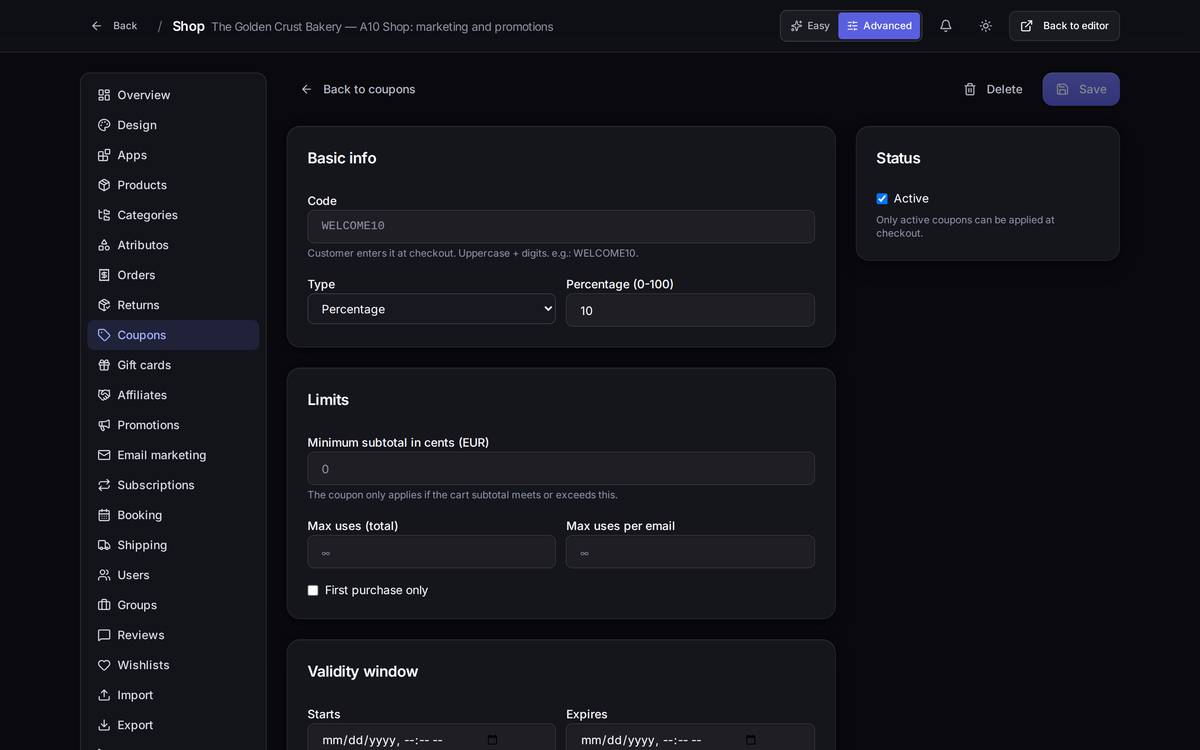
A closer look at the discount type
Watch out for…
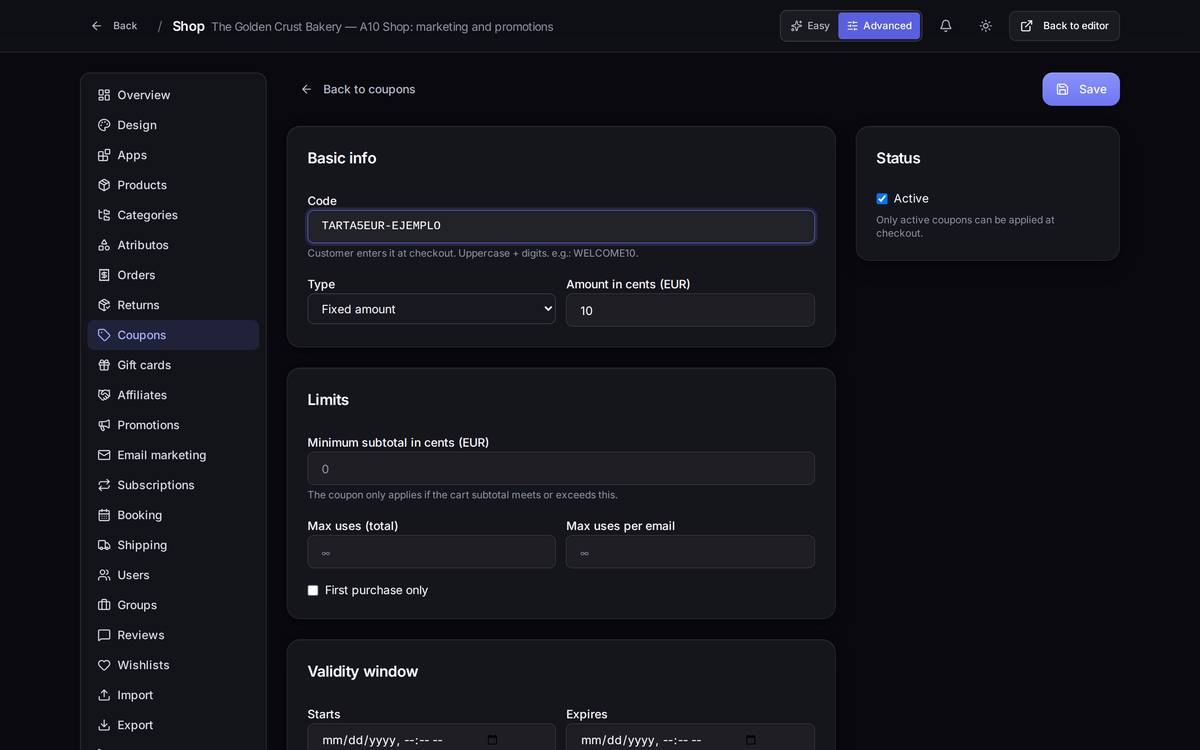
- The cents. Fixed amount and Minimum subtotal are both in cents. Type 5 thinking of five euros and you're giving away five cents.
- Changing the code of a coupon you've already handed out: the old code stops existing and anyone who types it gets no discount.
- "First purchase only" isn't watertight today. It only blocks a customer while their previous order is in the Paid status; as soon as that order moves to Shipped or Delivered, the same email counts as a new customer again. If the coupon is generous, also set Max uses per email = 1.
Seeing the coupon applied in the shop
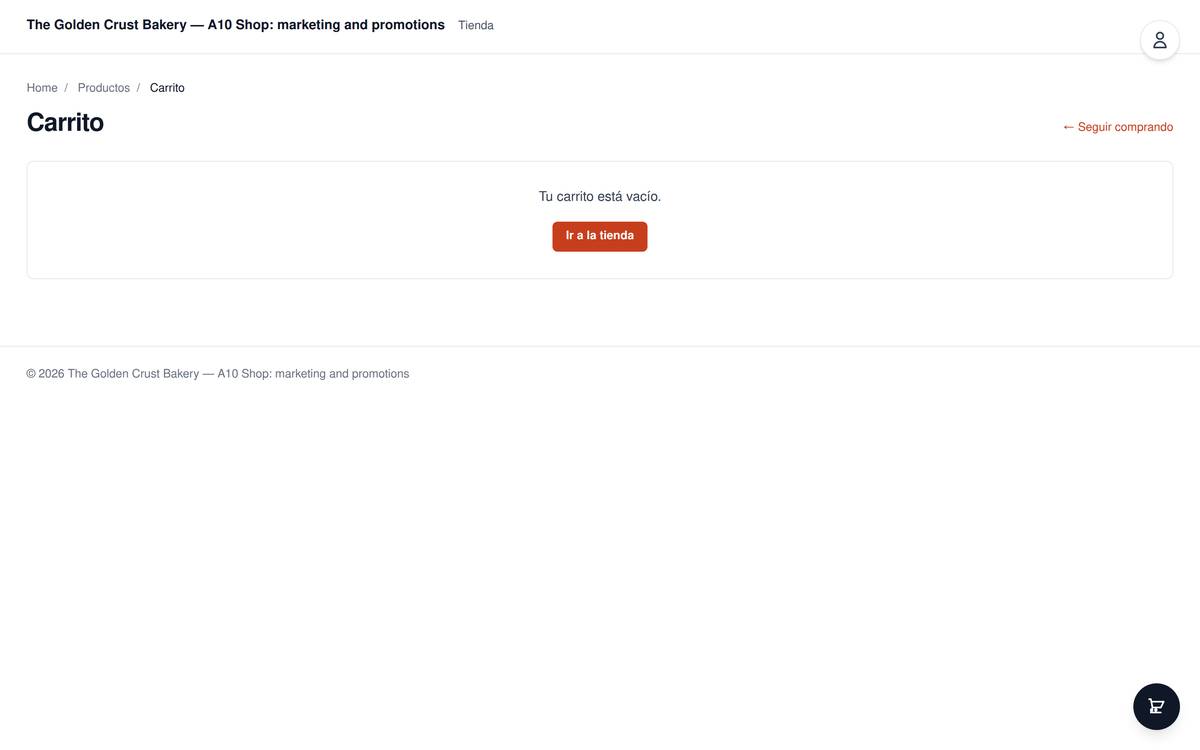
Two things worth knowing before you advertise a coupon:
- The standard shop pages don't yet have a box for the customer to type the code into, not in the basket and not at checkout. The discount can be applied, but there's nowhere to type it. Check this on your own shop before you send the campaign.
- Percentage coupons are calculating the discount wrongly: 10% comes out as a token few cents. Fixed amount and free shipping coupons do take off what they say. Until this is fixed, stick to fixed amounts: instead of "10% off", offer "€3 off".
10.3The colour of the shop panel
In the shop header, next to the bell, there's a button with a sun or a moon on it. It switches the panel between dark and light. It's for you and your screen only: it doesn't affect how your customers see the shop.
10.4Promotions
What it's forA promotion is an automatic discount: no code needed, it applies by itself to anyone who meets the condition while it's running.
How to get thereShop → Advanced → Promotions.
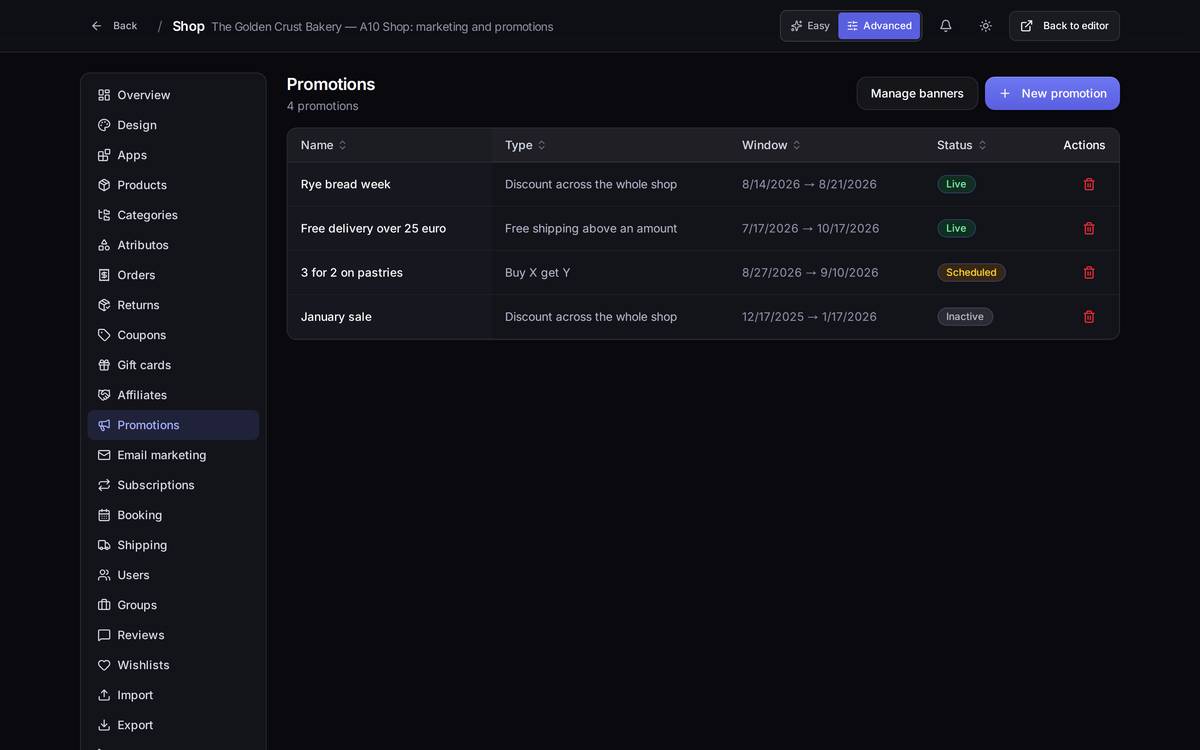
What's on screen. Four possible types: a discount across the whole shop, a discount on one category, "buy X get Y", and free shipping above a given amount. The status is worked out from the dates: if the start date hasn't arrived yet, the promotion shows as Scheduled.
In the screenshots you'll see the type written as an internal code (shop.promotions.types.…): the translation was missing and has been fixed alongside this manual, so your panel should already show it in words.
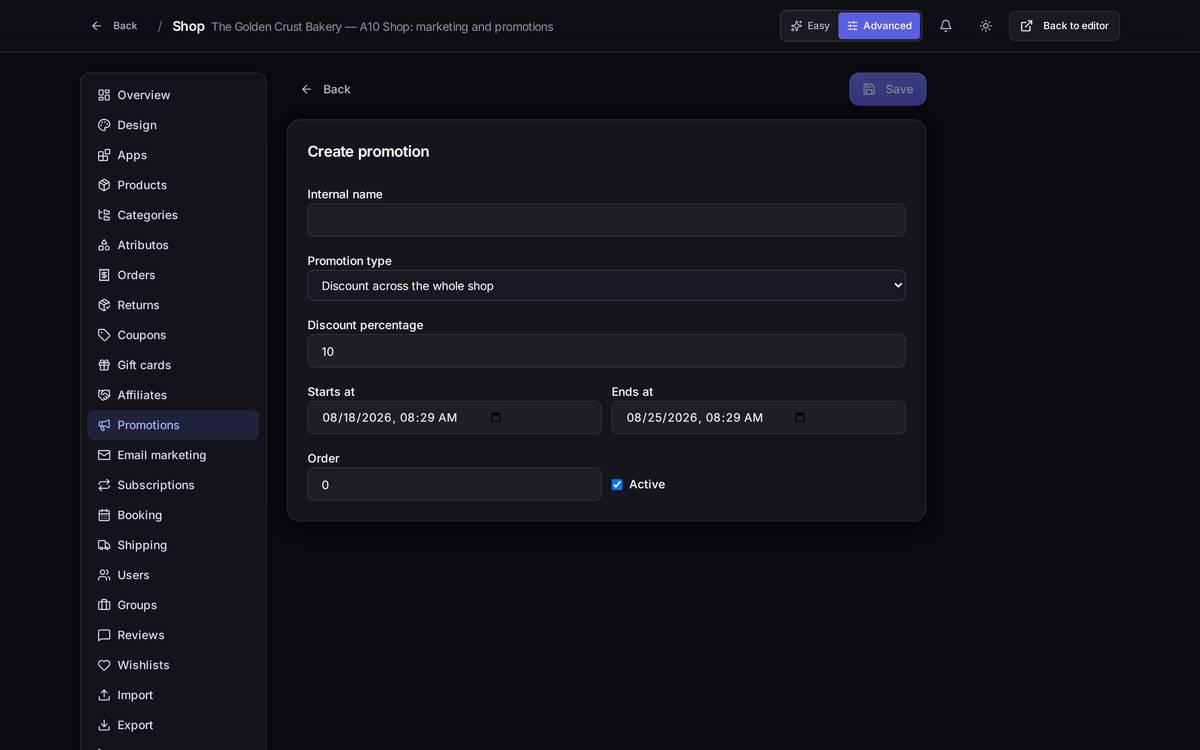
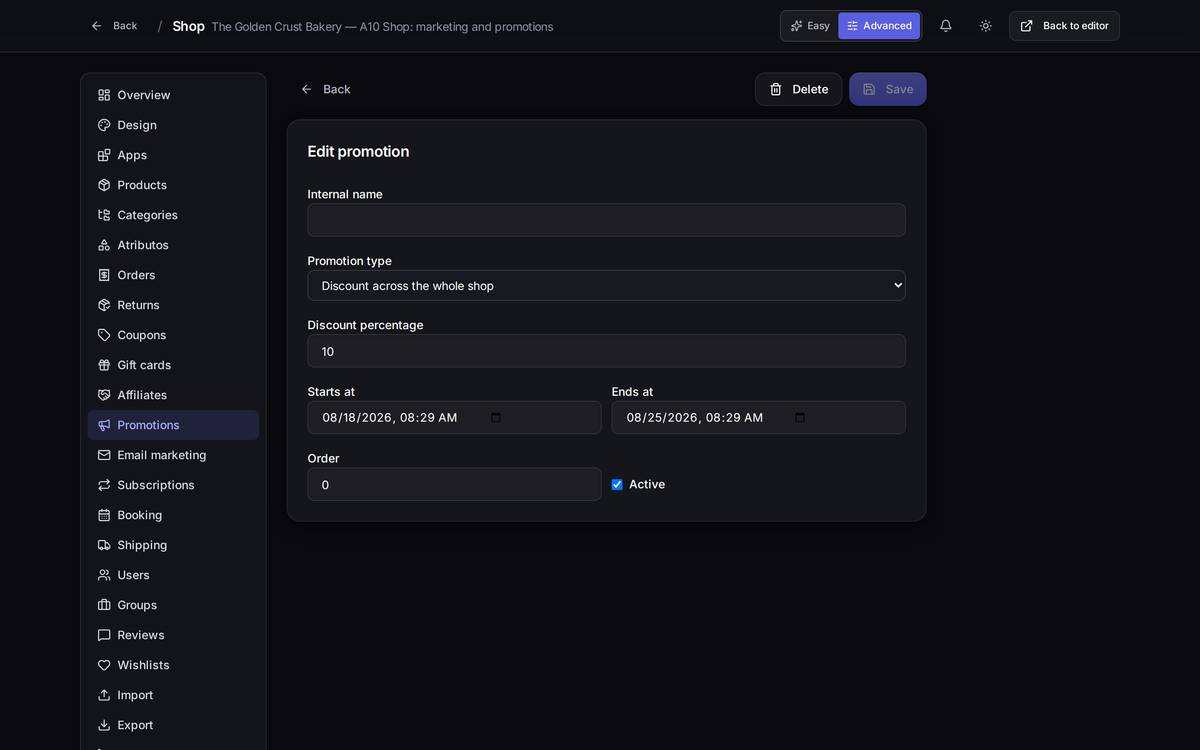
Watch out for… overlapping promotions and coupons on the same product: the discounts stack and you can end up selling below cost. And watch the Order field: when two promotions fight over the same basket, the lower order number wins.
10.5Shop banners
What it's forThe sign that announces the promotion. Without a banner, a promotion works but nobody sees it.
How to get thereIn Promotions, click Manage banners.
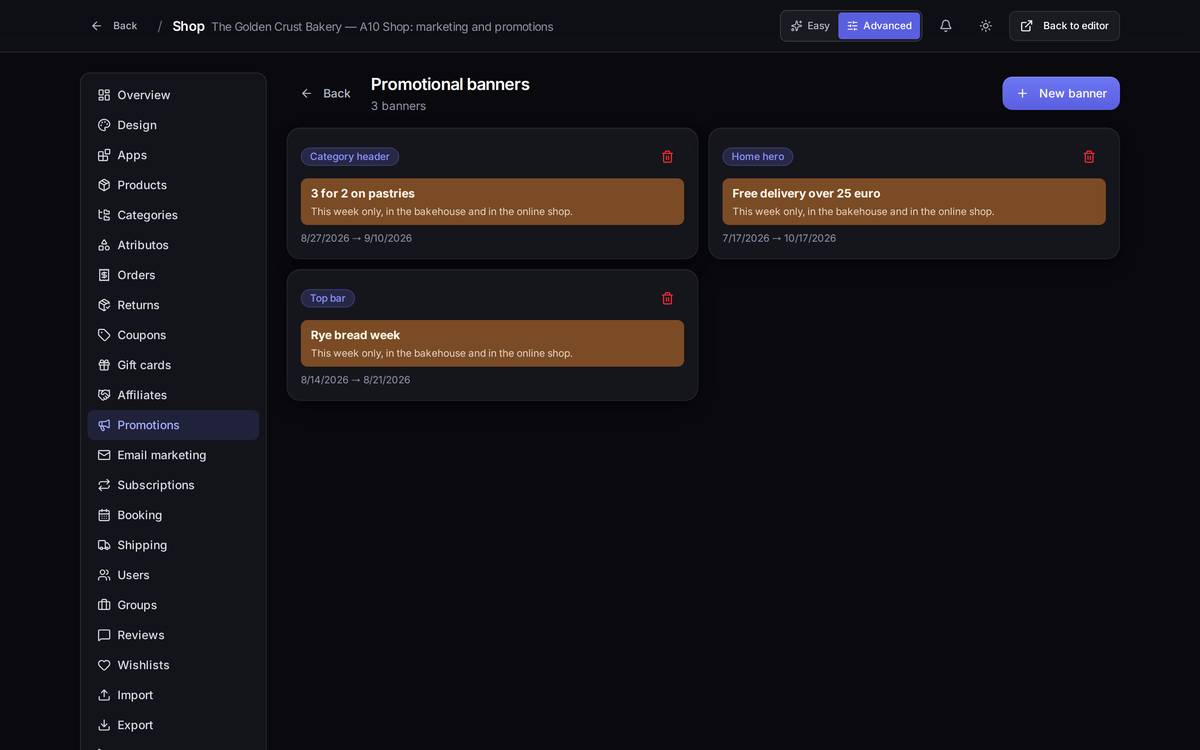
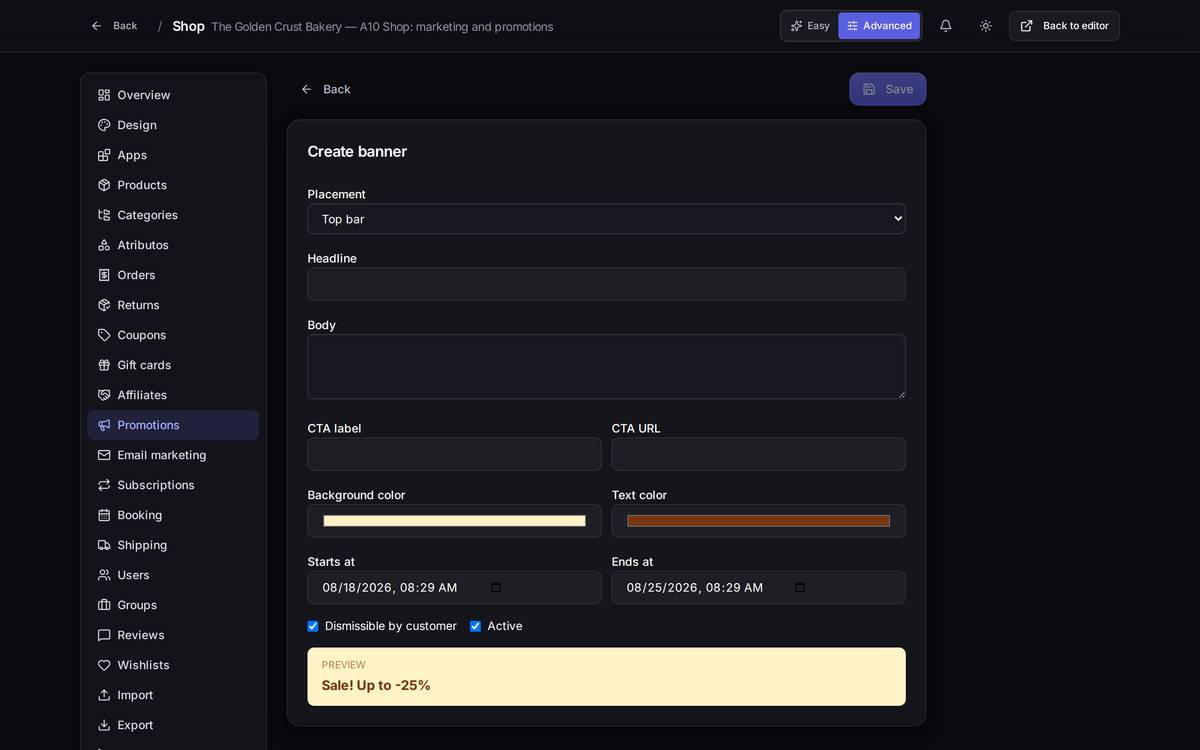
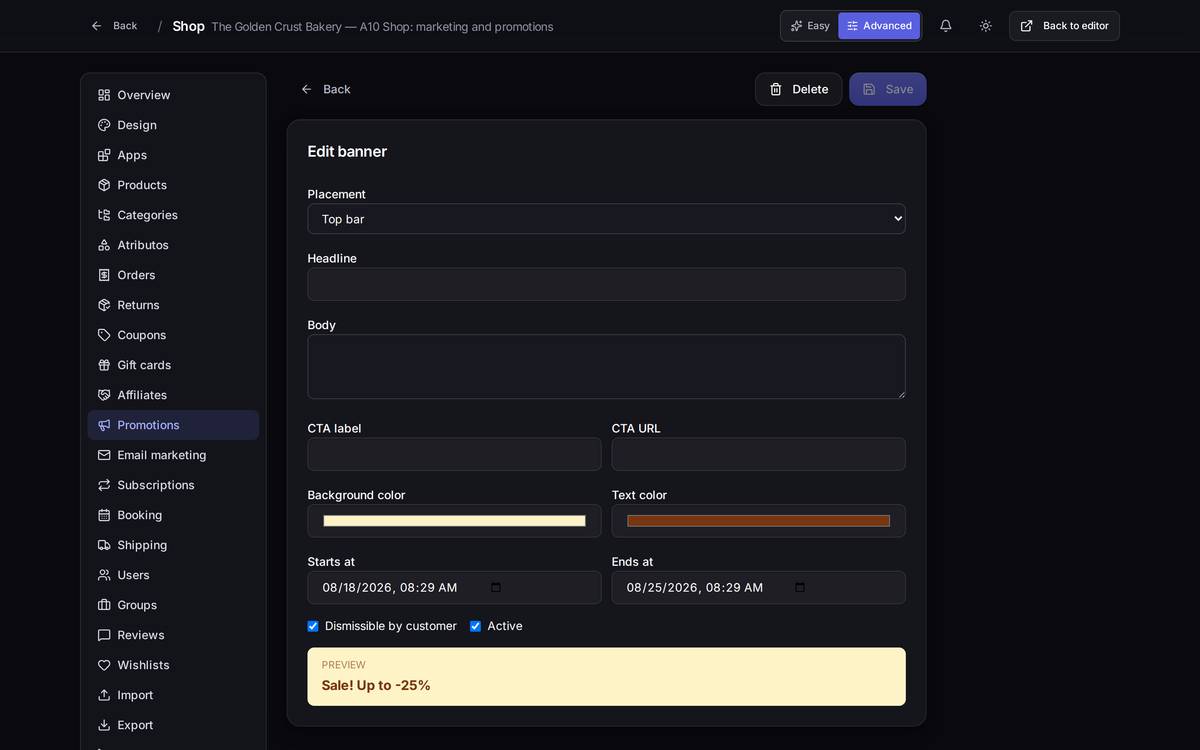
What's on screen. You choose the Placement (top bar, home hero, category header, product page above the price, or on exit intent), the Headline, the Body, the CTA label and CTA URL, the two colours, and whether the customer can dismiss it.
Watch out for… the colours: you pick them by hand and nothing warns you if the text ends up unreadable against the background. Check it in the preview before you save. And watch the dates: an active banner that's outside its dates isn't shown, even though you can see it sitting there in the list.
10.6Gift cards
What it's forSelling credit. Whoever buys it gives it away, and whoever receives it spends it in your shop whenever they like.
How to get thereShop → Advanced → Gift cards.
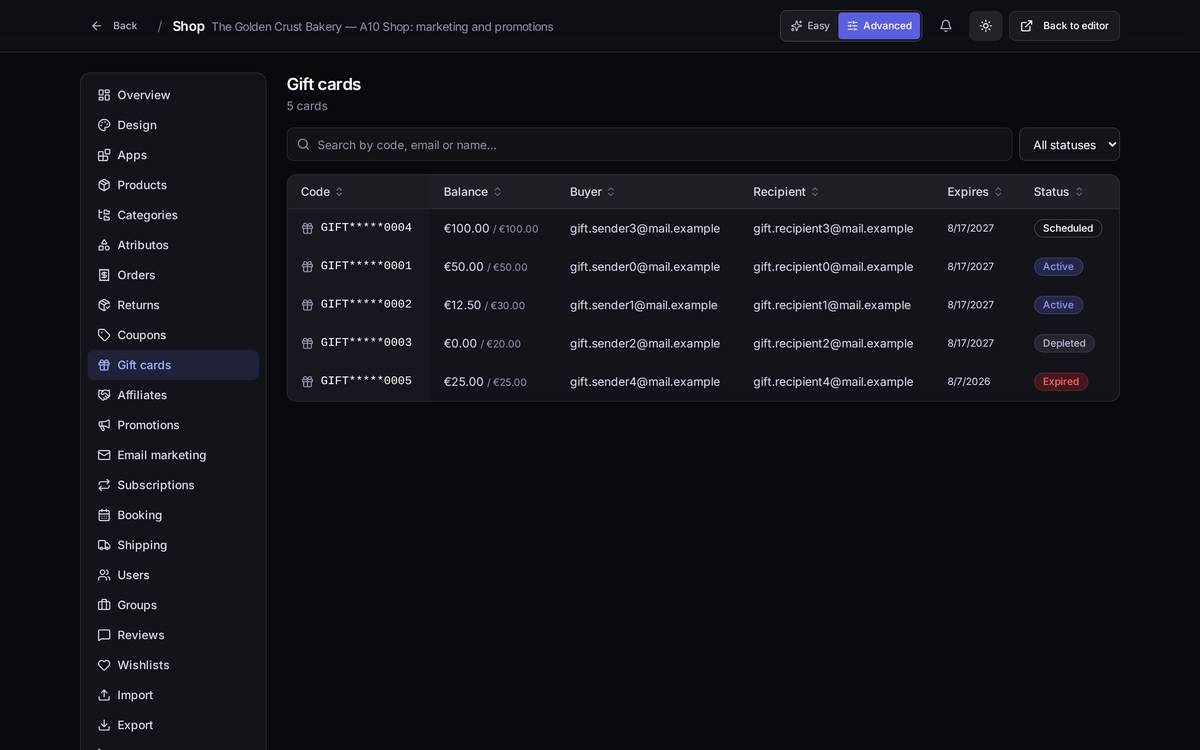
GIFT*0004) so it can't be copied at a glance over your shoulder.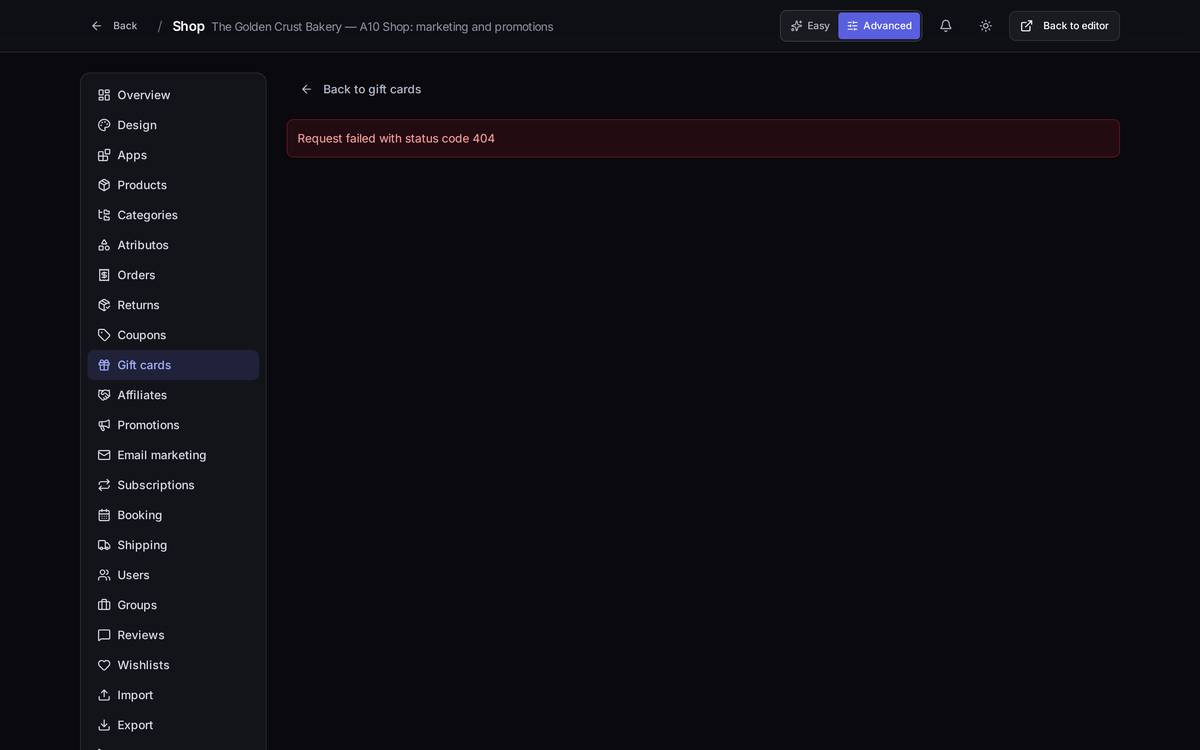
What's on screen. The status filter —Active, Scheduled, Depleted, Expired, Cancelled— the balance in "what's left / what it started with" form, and, inside the card, the Cancel card button.
Watch out for… cancelling a card: the balance is lost and your customer is out of pocket for what they paid. Use it only for fraud or an issuing mistake, and tell them first.
10.7Affiliates
What it's forPaying commission to whoever brings you sales: a blog, a local magazine, a residents' association. Each one has their own code; when somebody arrives through their link and buys, the sale is credited to them.
How to get thereShop → Advanced → Affiliates.
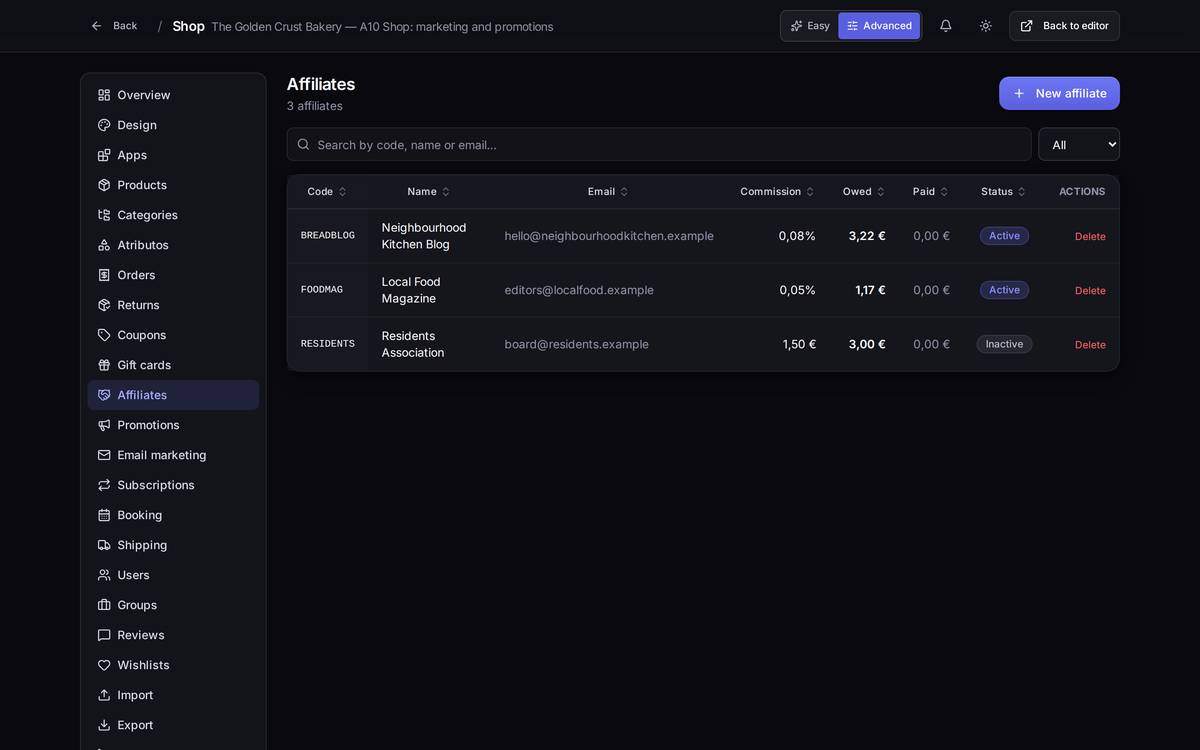
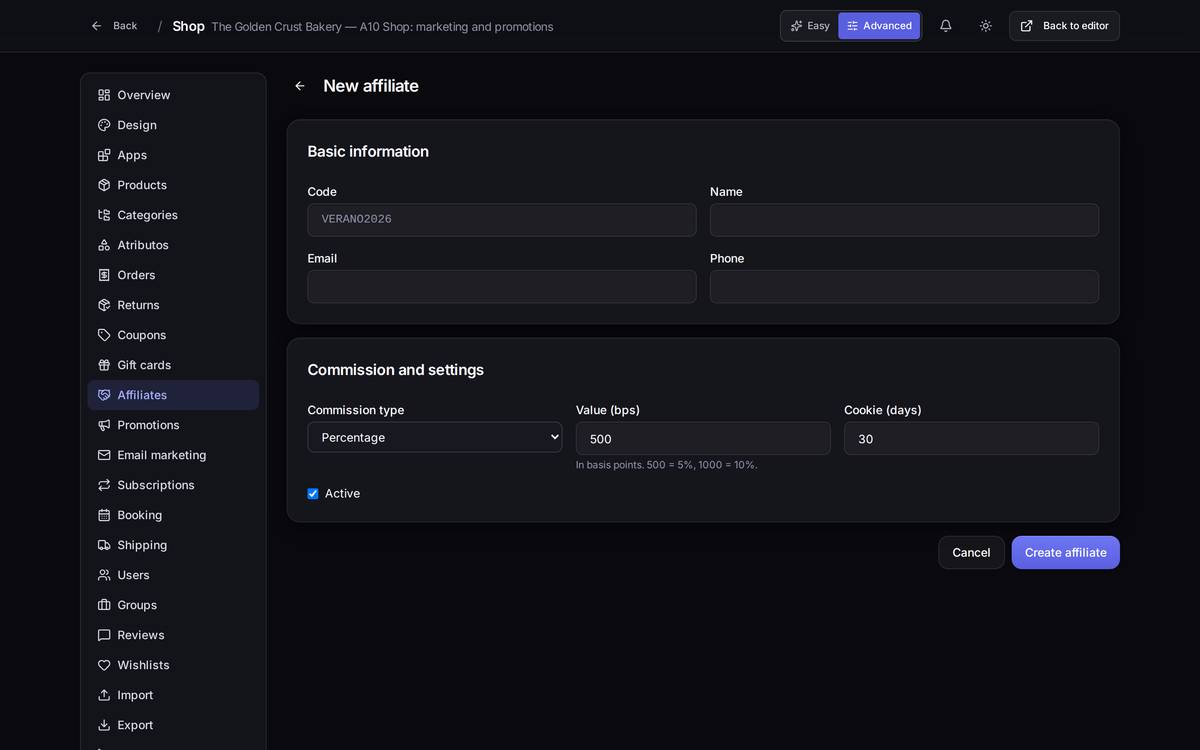
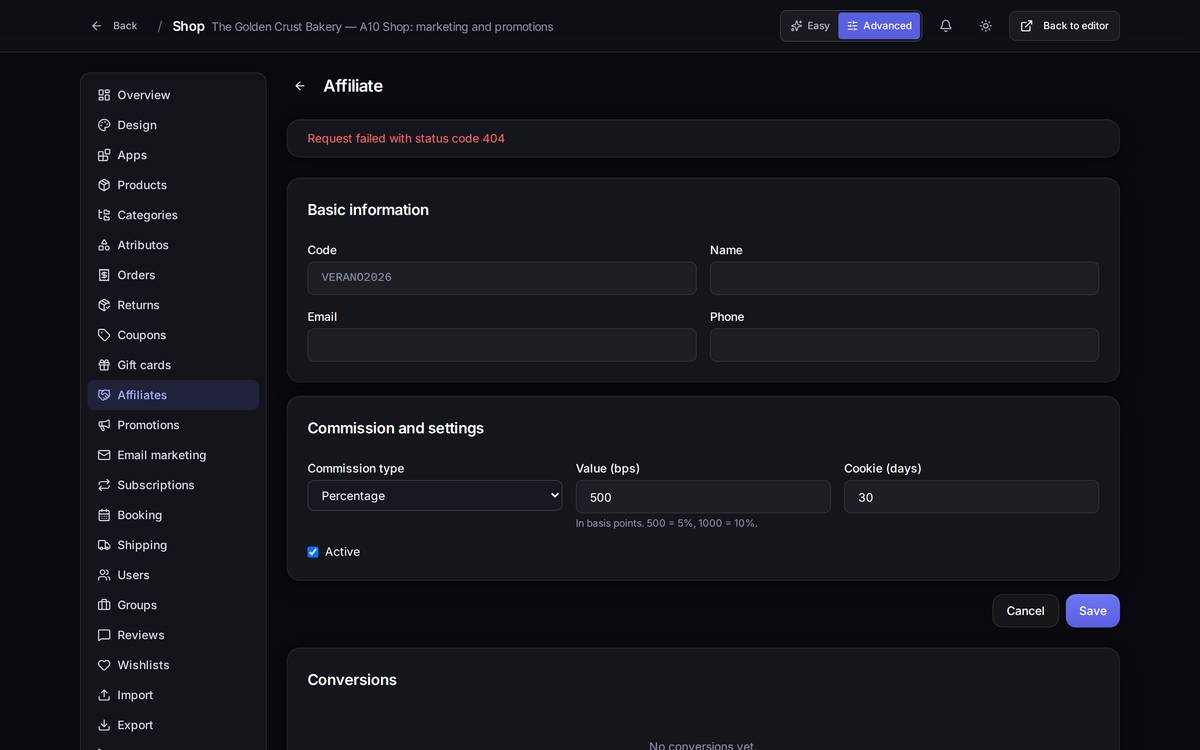
What's on screen
- Commission type: percentage or fixed amount.
- Value (bps): here the percentage goes in basis points, not plain per cent. 800 = 8%, 500 = 5%. The field itself reminds you underneath.
- Cookie (days): how long a sale keeps being credited to that affiliate after a visitor arrives through their link. 30 days is the norm.
- Conversions: each commission stays Pending until you mark it paid.
Watch out for… the basis points field. Type 8 thinking of 8% and you're paying 0.08%: eight cents per hundred euros. And note it doesn't work like the percentage on a coupon, which really does run from 0 to 100.
10.8Email marketing
What it's forWriting to your customers: news, seasonal campaigns, winning back people who haven't bought in a while. With double opt-in, meaning the subscriber confirms by email that they want to hear from you.
How to get thereShop → Advanced → Email marketing. Note: only the person who owns the project can see it; if you collaborate on somebody else's shop, this section won't appear for you.
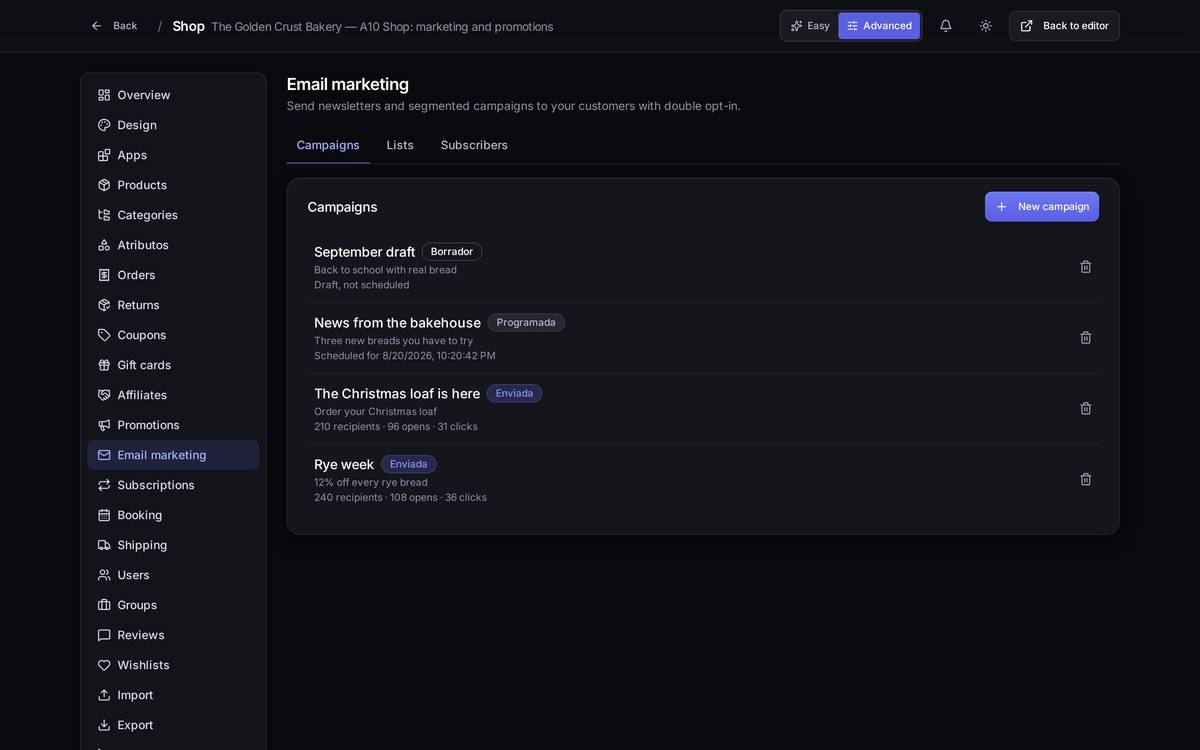
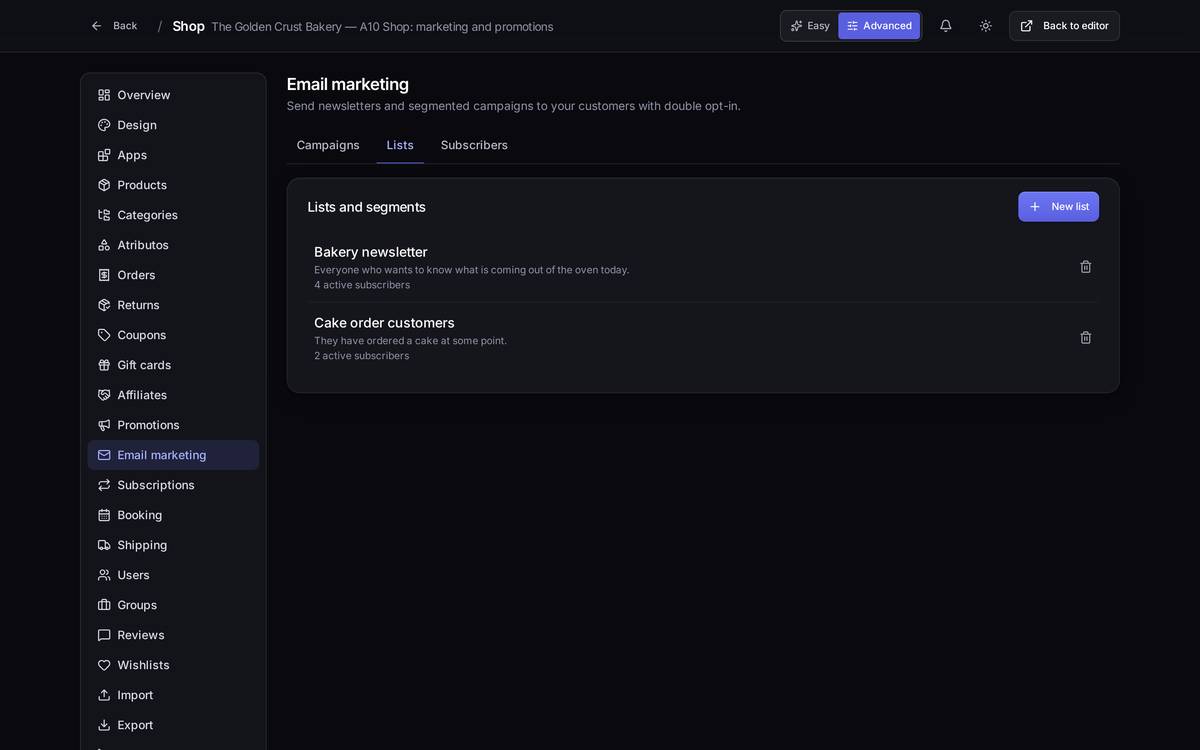
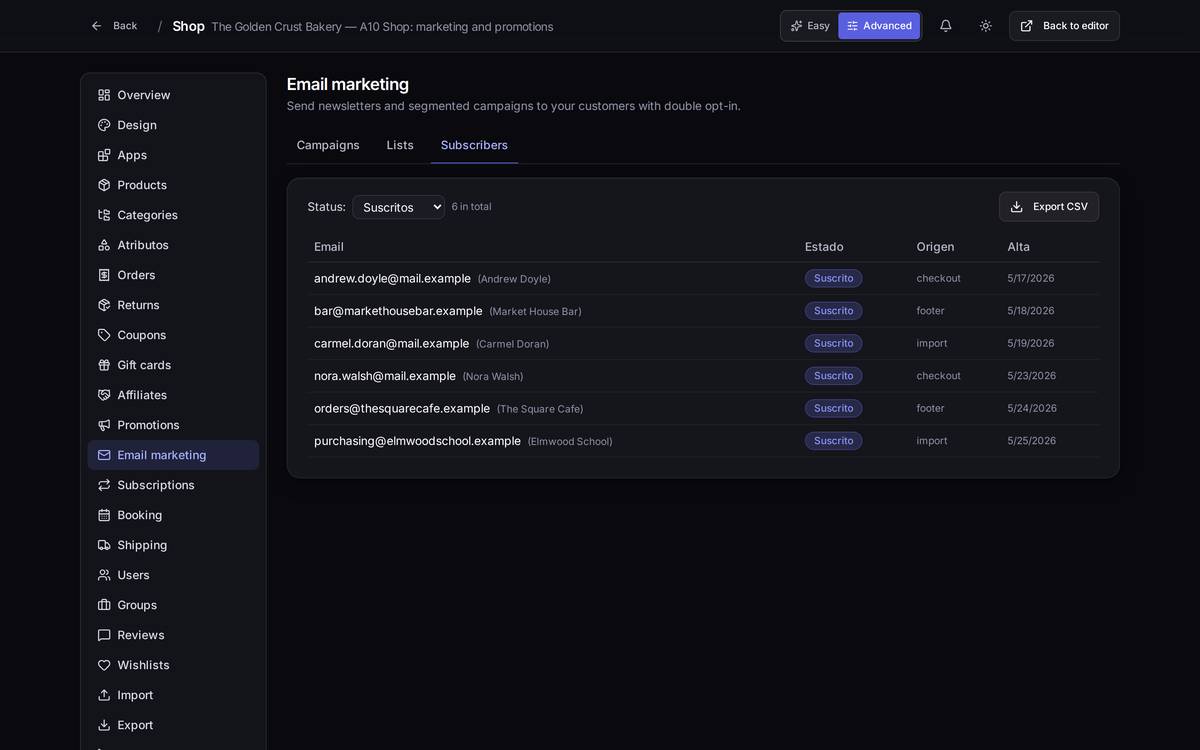
Watch out for… sending a campaign: it can't be undone or "unsent". Before you press the button, send yourself a test and read it on your phone. And respect unsubscribes: someone who opts out stops receiving, and adding them back by hand is illegal as well as rude.
10.9Abandoned cart reminders
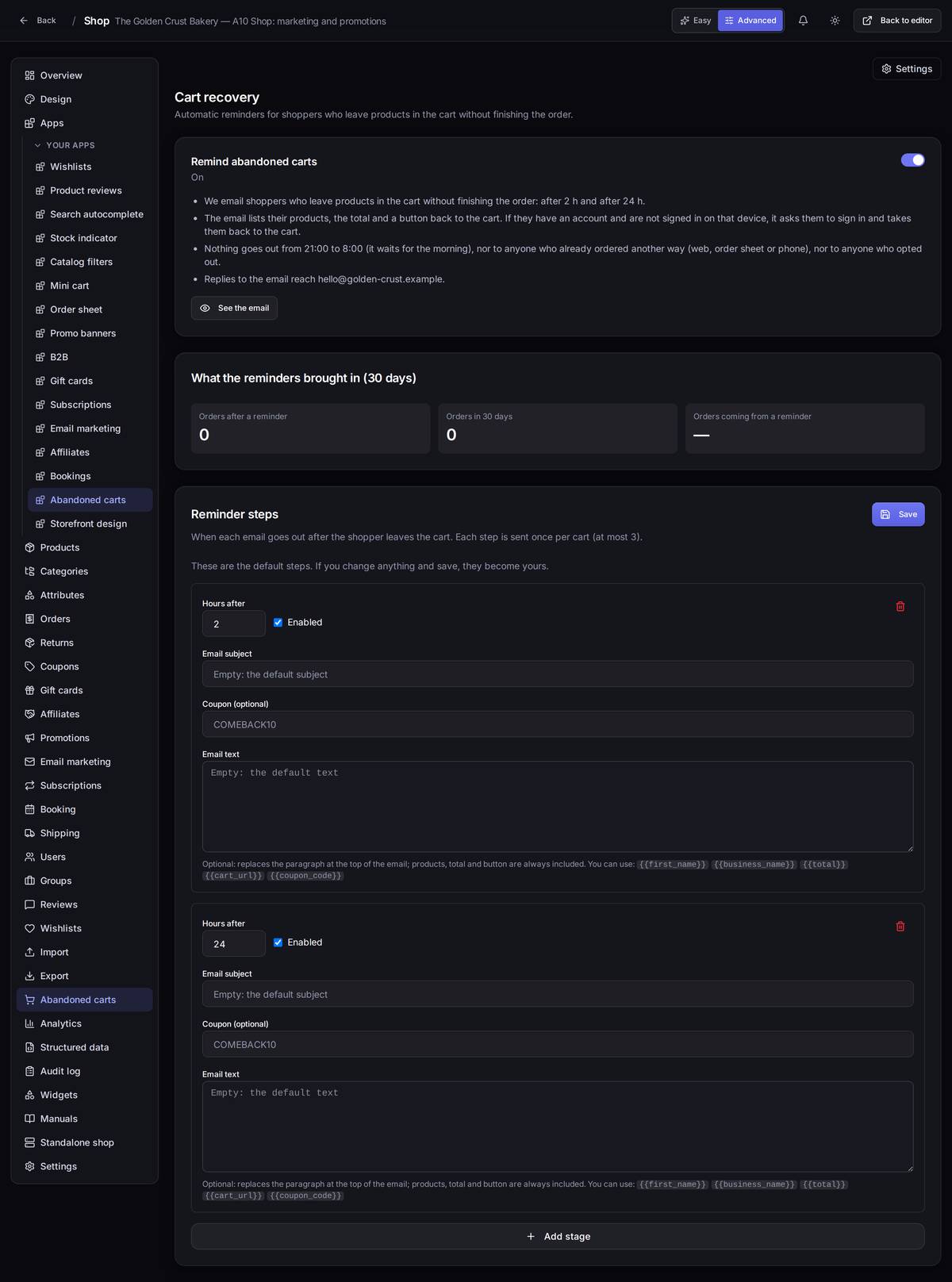
What it's forSomebody fills a basket and leaves without paying. The shop emails them a reminder on its own, with nothing for you to set up: it comes switched on, 2 hours and 24 hours after they leave the cart.
How to get thereShop → Advanced → Abandoned carts → Reminder settings.
What's on screen
- Remind abandoned carts: the switch. When it's off, no automatic reminder goes out (the Send reminder button in the list still works).
- What it does, in four lines: who gets an email and when, what the email contains, when it is not sent and where replies go.
- See the email: the email exactly as the customer gets it, built with your latest abandoned cart (or a sample one made from your products if you have none yet).
- What the reminders brought in: orders in the last 30 days that came from a cart that had been sent a reminder, and how much was collected.
- Reminder steps: when each email goes out (up to three). You can change the hours, the subject, the text at the top of the email and add a coupon.
What the customer receives. An email with your shop's name, their products with picture, quantity and amount, the total and a Finish my order button. If they have an account and are already signed in on that phone or computer, the button takes them straight to their cart; if not, it asks them to sign in and then drops them in the cart. If they reply, the reply reaches the shop email (the one in Settings). The footer has I don't want more cart reminders.
When it is not sent. From 21:00 to 8:00 (it waits for the morning); to anyone who has already ordered another way since leaving the cart (on the web, with the order sheet or by phone, if your shop is connected to the ERP); to anyone who opted out; and to a cart without an email (a visitor who never typed one). Two emails never go out at once, nor less than 12 hours apart.
Step by step: change when it goes out
- In Reminder steps, change the hours of a step (for example, from 2 to 4).
- If you want another subject, type it; left empty, the default one is used.
- Click Save. From then on the steps are yours; Back to the defaults undoes the change.
- Click See the email to check how it looks before it reaches anyone.
An exampleA customer leaves a €120 cart at 11:00 and goes. At 13:00 she gets the first reminder and does nothing; the next day at 11:00 she gets the second one, clicks the button and pays. That order shows up in What the reminders brought in.
Watch out for… cramming three steps into two days: it's the fastest way to get marked as spam. The two default ones are plenty. And switching it off deletes nothing: when you switch it back on, your steps come back.
10.10Shop analytics
What it's forKnowing whether any of the above has done any good.
How to get thereShop → Advanced → Analytics.
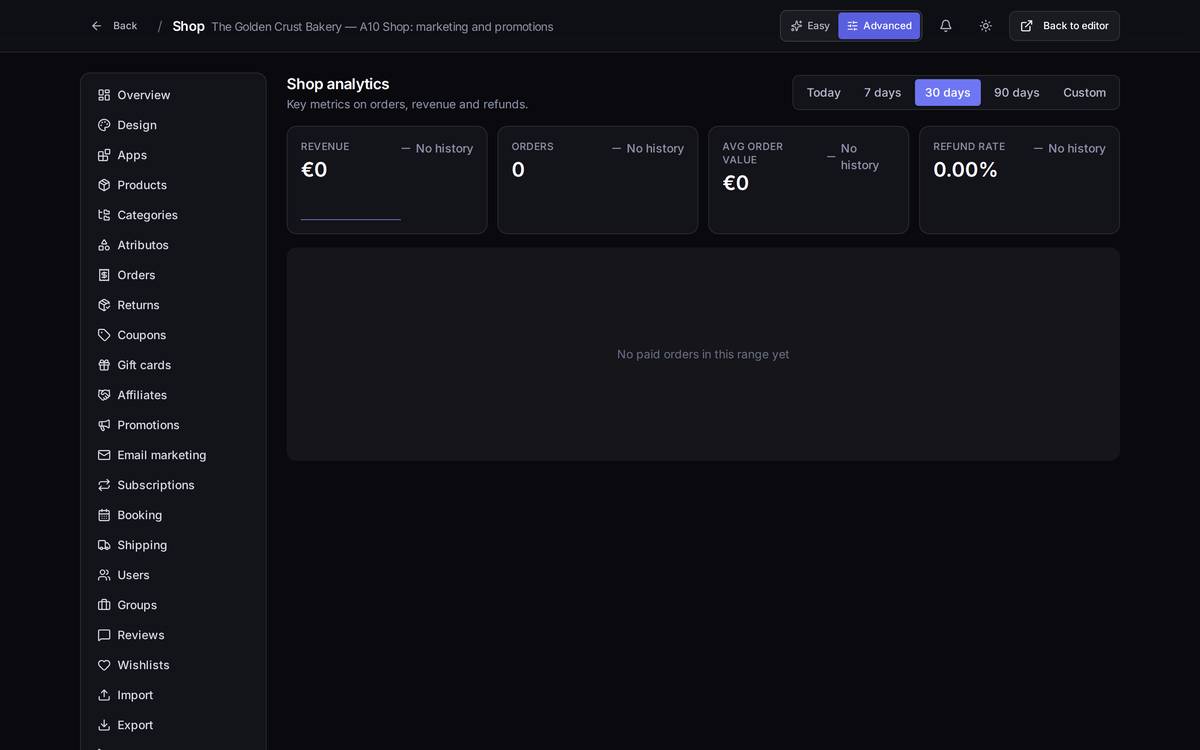
What each figure measures and what to do with it
- Revenue: what you invoiced in the period, counting paid orders only. The arrow compares against the previous period of the same length.
- Orders: how many purchases. If revenue rises and orders don't, you're selling at higher prices; if orders rise and revenue doesn't, you're giving away margin — go and look at your active coupons.
- Avg order value: what each customer spends per purchase. This is the number that "free delivery over X" promotions move.
- Refund rate: how much of what you sold comes back. If it jumps after a campaign, look at which product you were pushing.
- Daily revenue: the solid line is the chosen period; the dotted one is the previous. The peaks should line up with your campaigns: if you launched a coupon on the 12th and nothing shows, the coupon isn't reaching anyone.
- Top products: what actually sells. The top of the list deserves a banner; the bottom deserves either a promotion or to stop being restocked.
Top right you choose the period: Today, 7 days, 30 days, 90 days or a Custom one.
Watch out for… reading the percentages on a quiet day: with few orders, one large order sends the arrow flying. Compare weeks against weeks, not Tuesdays against Sundays. And bear in mind that only paid orders count here: ones awaiting payment don't register until they are paid.